Navigating VetWay Messages (click to view supademo)
This article explains how to use the Messages folders in VetWay to efficiently manage prescription requests and monitor their status. Learn what each folder represents, including Pending, On Hold, Approved, Denied, Error, Canceled, and All Messages so you can quickly locate requests, review details, and stay organized throughout your prescription workflow. A walk-through demo is also available to guide you step by step.
TABLE OF CONTENTS
Message Types
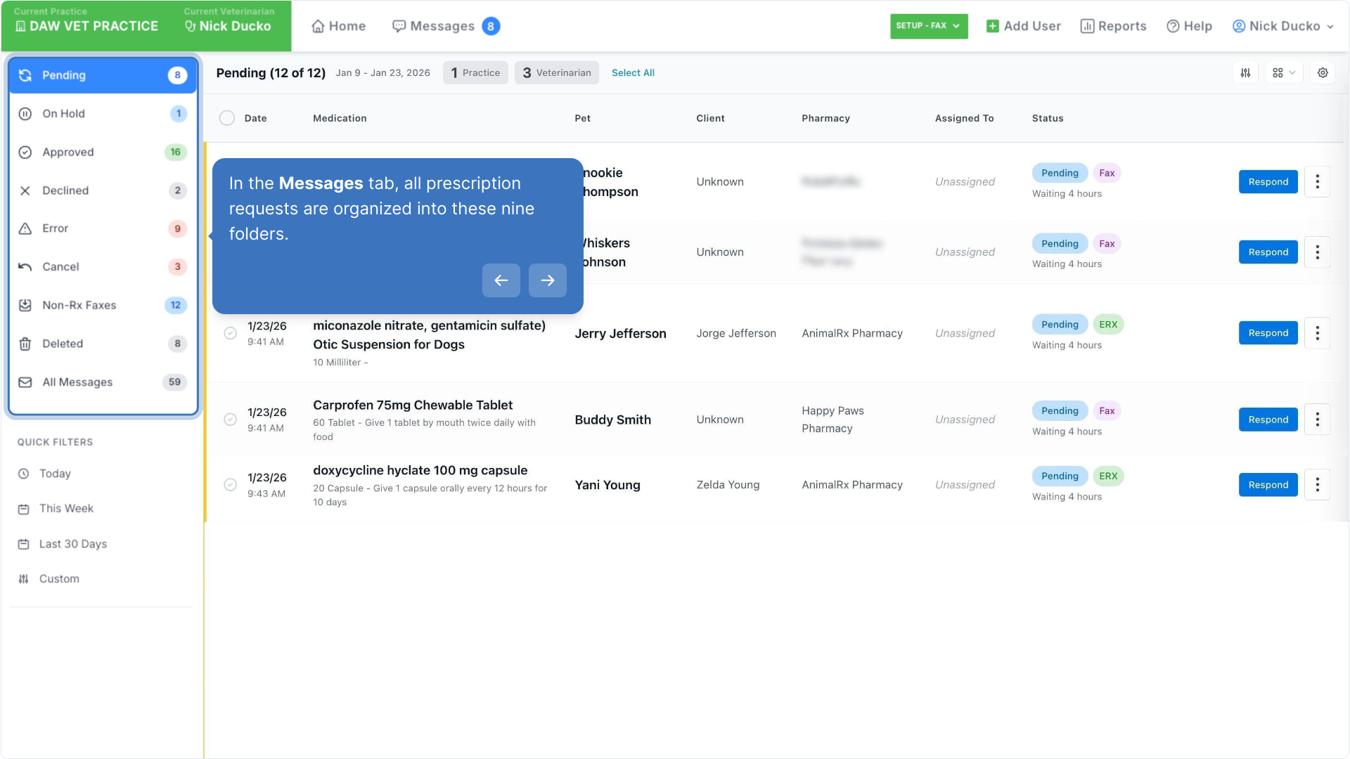
In the Messages tab, all prescription requests are organized into seven folders:
- Pending (default): Prescription requests that are awaiting your review and response.
- On Hold: Requests that have been temporarily paused. You can return to and release them when ready to complete your review.
- Approved: Prescription requests that have been reviewed and approved.
- Declined: Prescription requests that have been reviewed and declined.
- Error: Requests that encountered an issue during processing (for example, a failed pharmacy fax transmission).
- Cancel: Prescription requests that were canceled.
- Non-Rx Faxes: Any incoming faxes that the system flags as not being prescription requests are filtered into the Non-Rx Faxes tab. Examples include fax cover sheets, medical records, or junk mail received via fax.
- Deleted: Any requests deleted from the queue will appear in the Deleted folder.
- All Messages: Displays all prescription requests across every status in one combined view.
Walk-through Demo
Explore the steps by clicking through the demo below!
Was this article helpful?
That’s Great!
Thank you for your feedback
Sorry! We couldn't be helpful
Thank you for your feedback
Feedback sent
We appreciate your effort and will try to fix the article