Approve Access Requests - For Veterinarians (click to view Supademo)
This article explains how veterinarians can review and manage “Prescribe Using” permission requests in VetWay. When a staff member requests permission to prescribe on your behalf, you’ll receive a prompt to review their access. The article walks through how to view permission settings, understand what actions users can perform, and approve or deny requests.
It also highlights important compliance rules, including that controlled substance prescriptions must always be approved by the veterinarian and cannot be delegated. Additionally, it covers optional settings for RefillRx, which allow pharmacies to send refill requests electronically, and how those permissions appear only if enabled.
Finally, the guide shows how to edit permission settings, save changes, and manage pending requests, ensuring you maintain full control over prescribing activities performed under your credentials.
TABLE OF CONTENTS
- View Access Request
- Permission Settings
- Review users that have requested permission to prescribe for you.
- Walk-through Demo
View Access Request
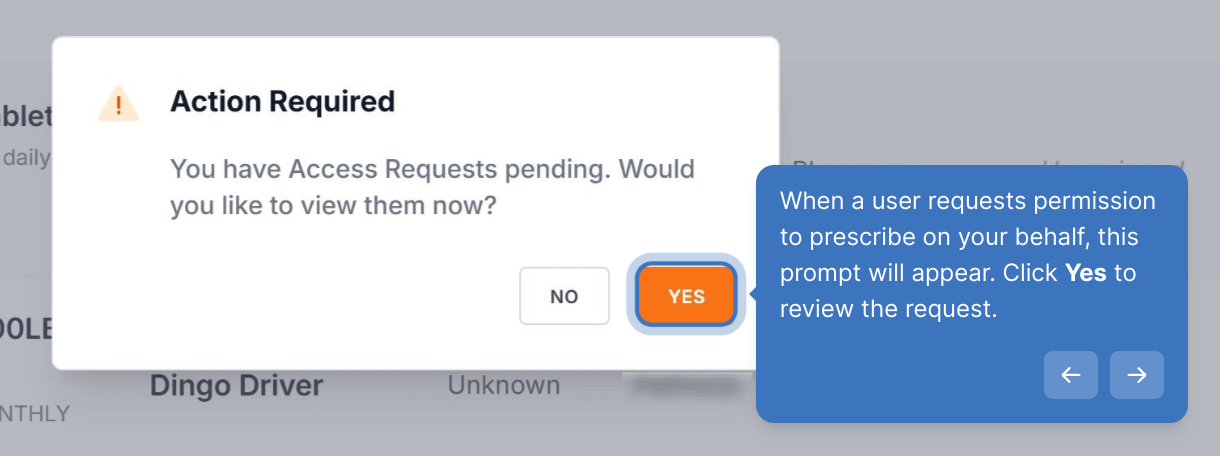
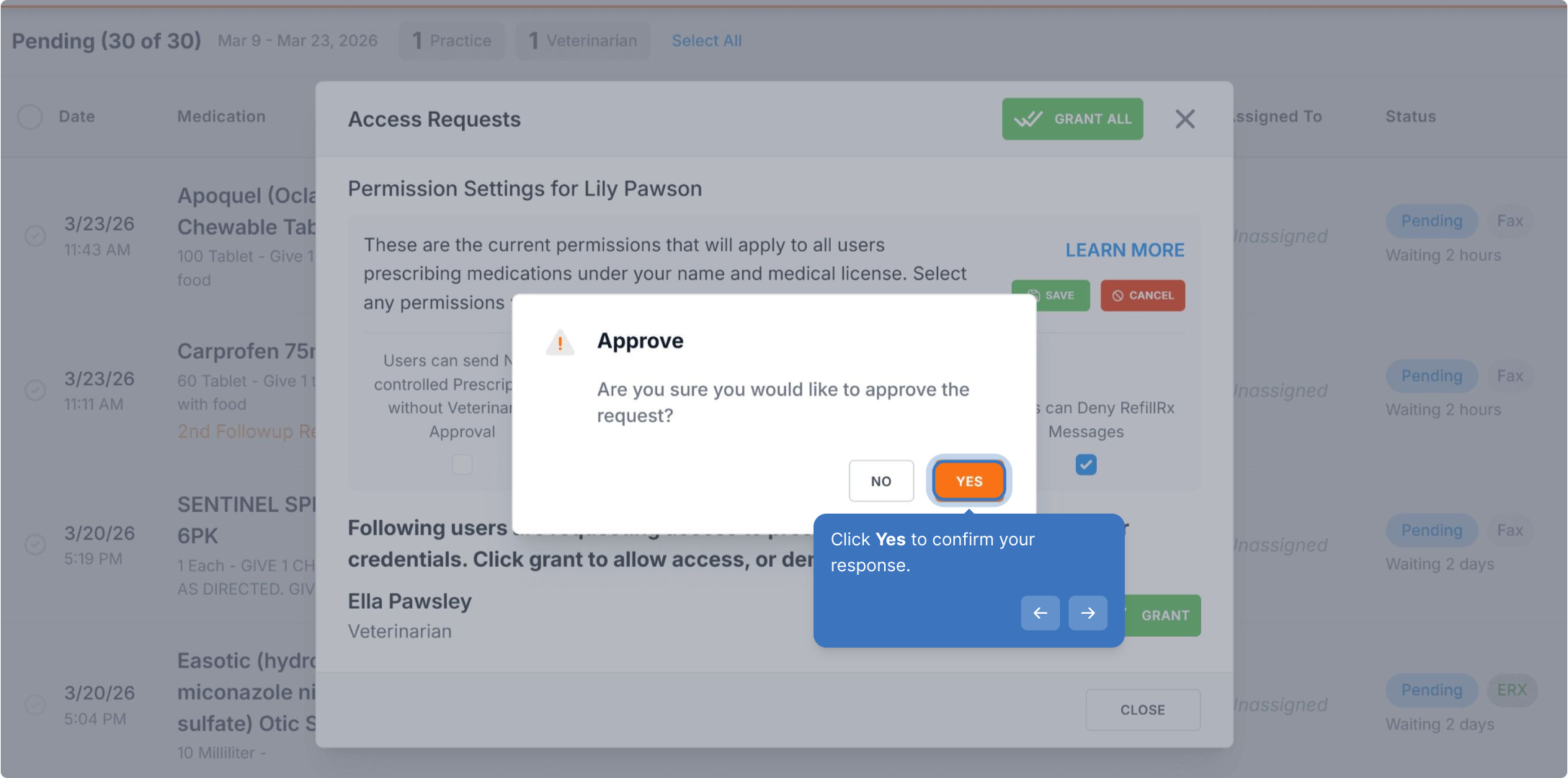
When a user requests permission to prescribe on your behalf, this prompt will appear. Click Yes to review the request.
Permission Settings
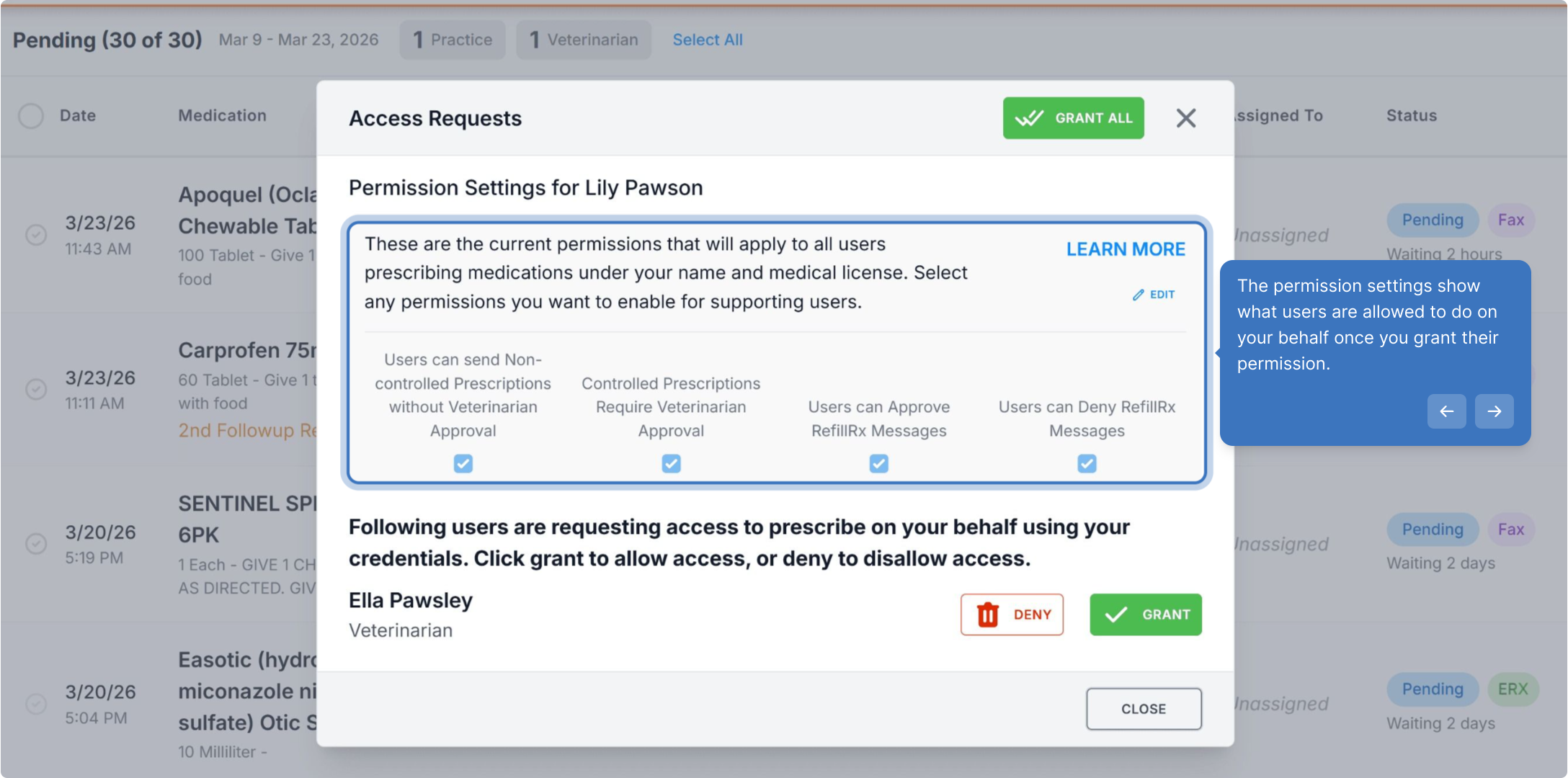
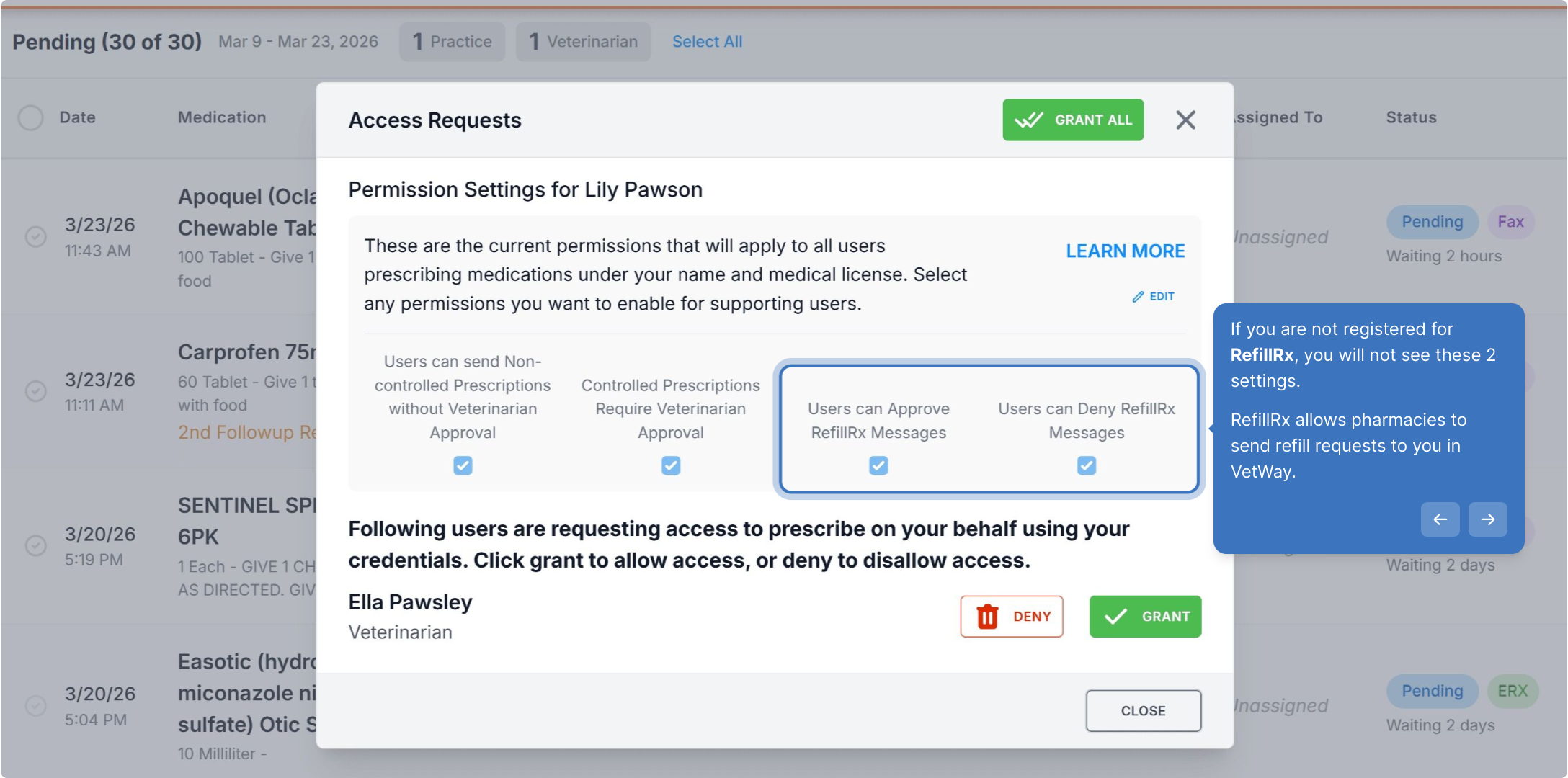
The permission settings show what users are allowed to do on your behalf once you grant their permission.
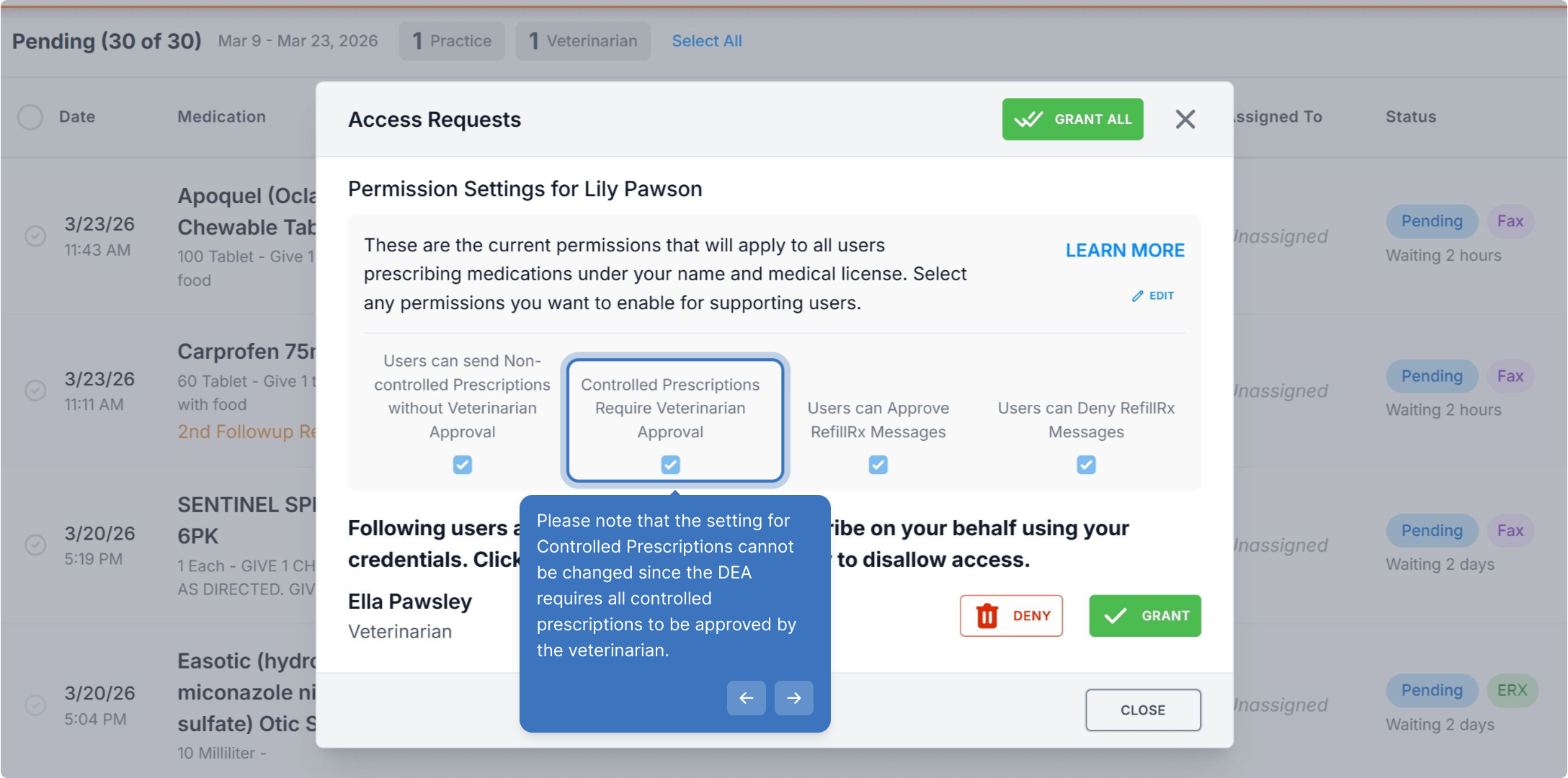
Please note that the setting for Controlled Prescriptions cannot be changed since the DEA requires all controlled prescriptions to be approved by the veterinarian.
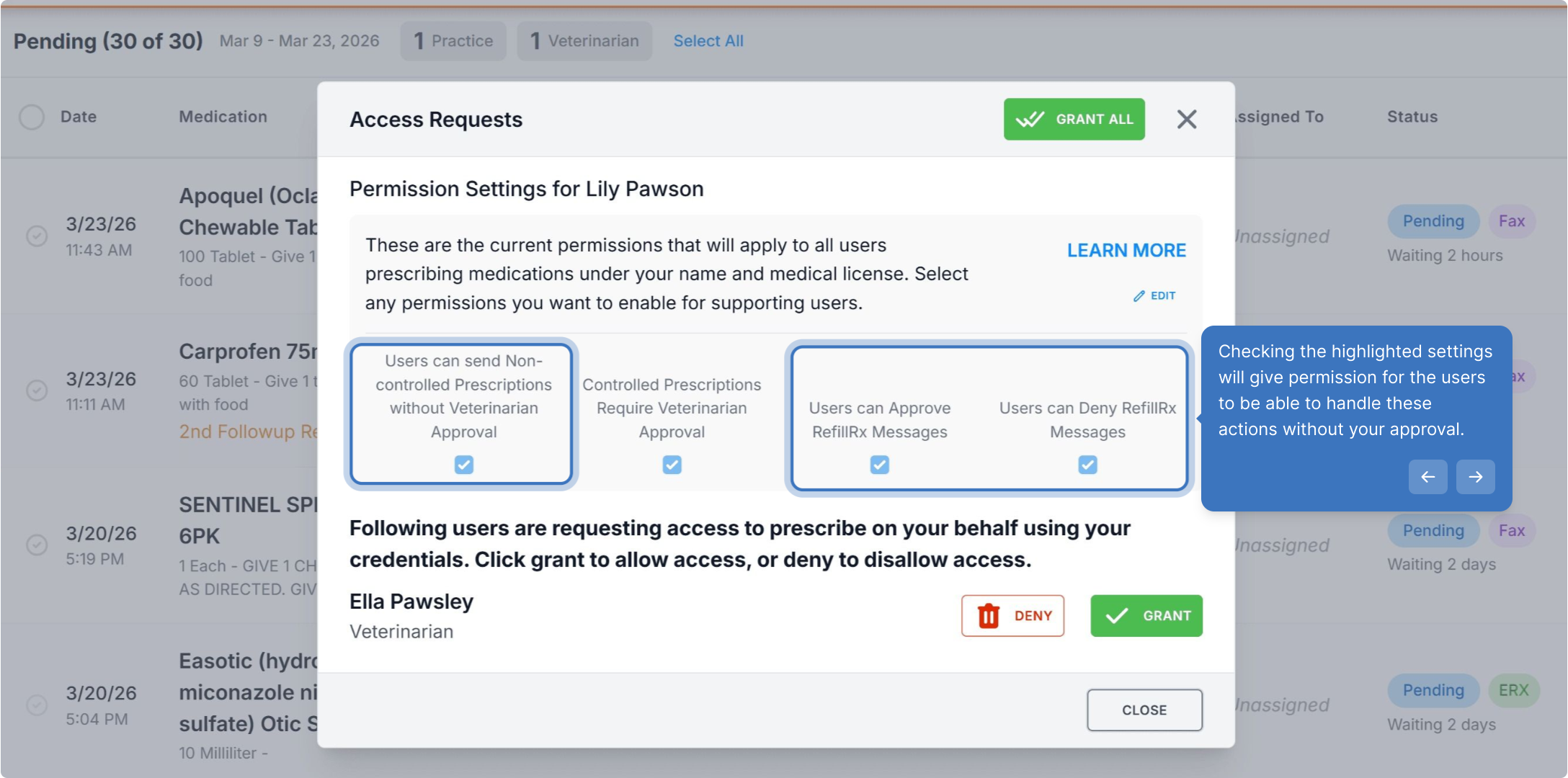
Checking the highlighted settings will give permission for the users to be able to handle these actions without your approval.
If you are not registered for RefillRx, you will not see these 2 settings. RefillRx allows pharmacies to send refill requests to you in VetWay.
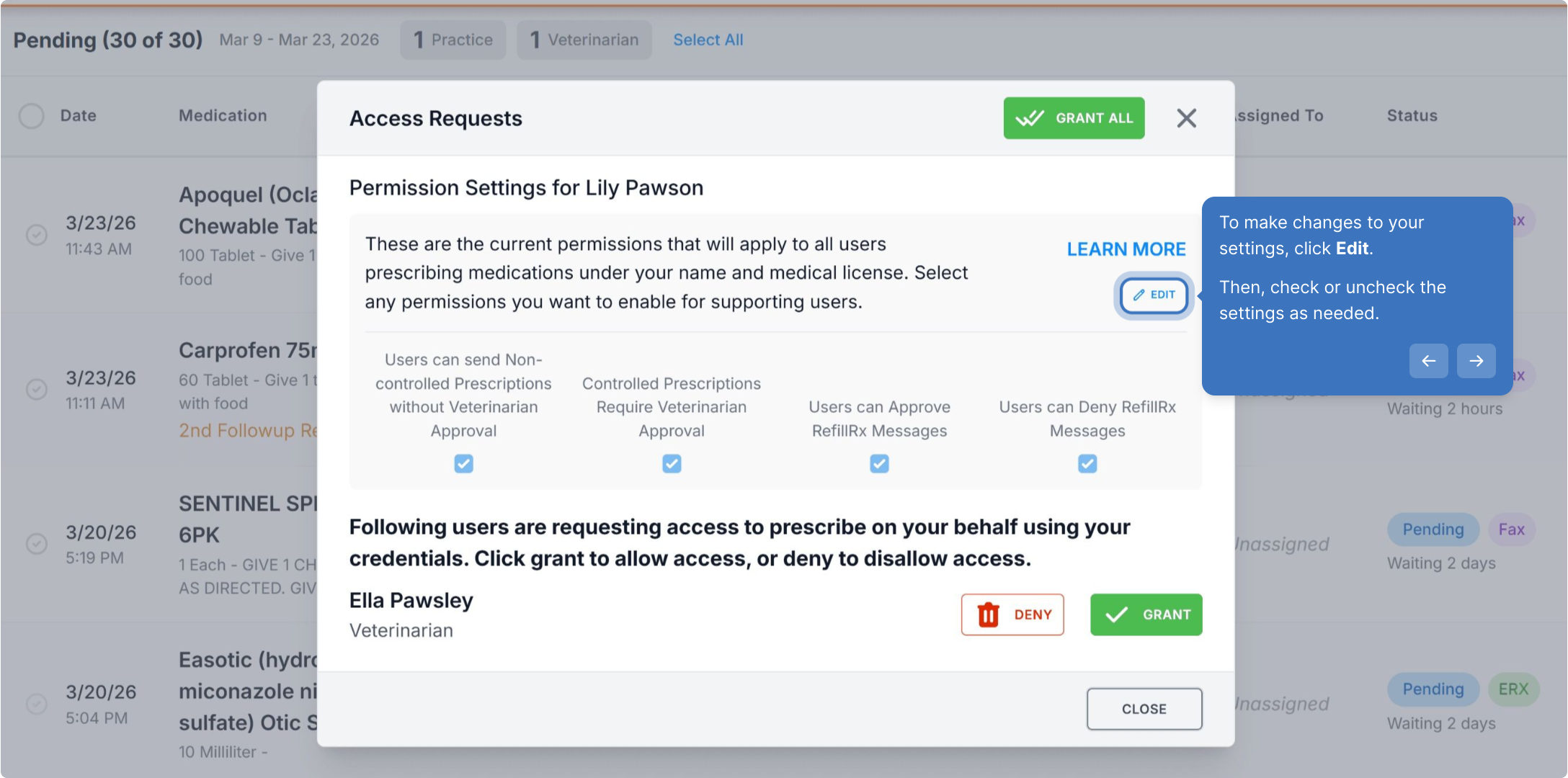
To make changes to your settings, click Edit. Then, check or uncheck the settings as needed and click Save.
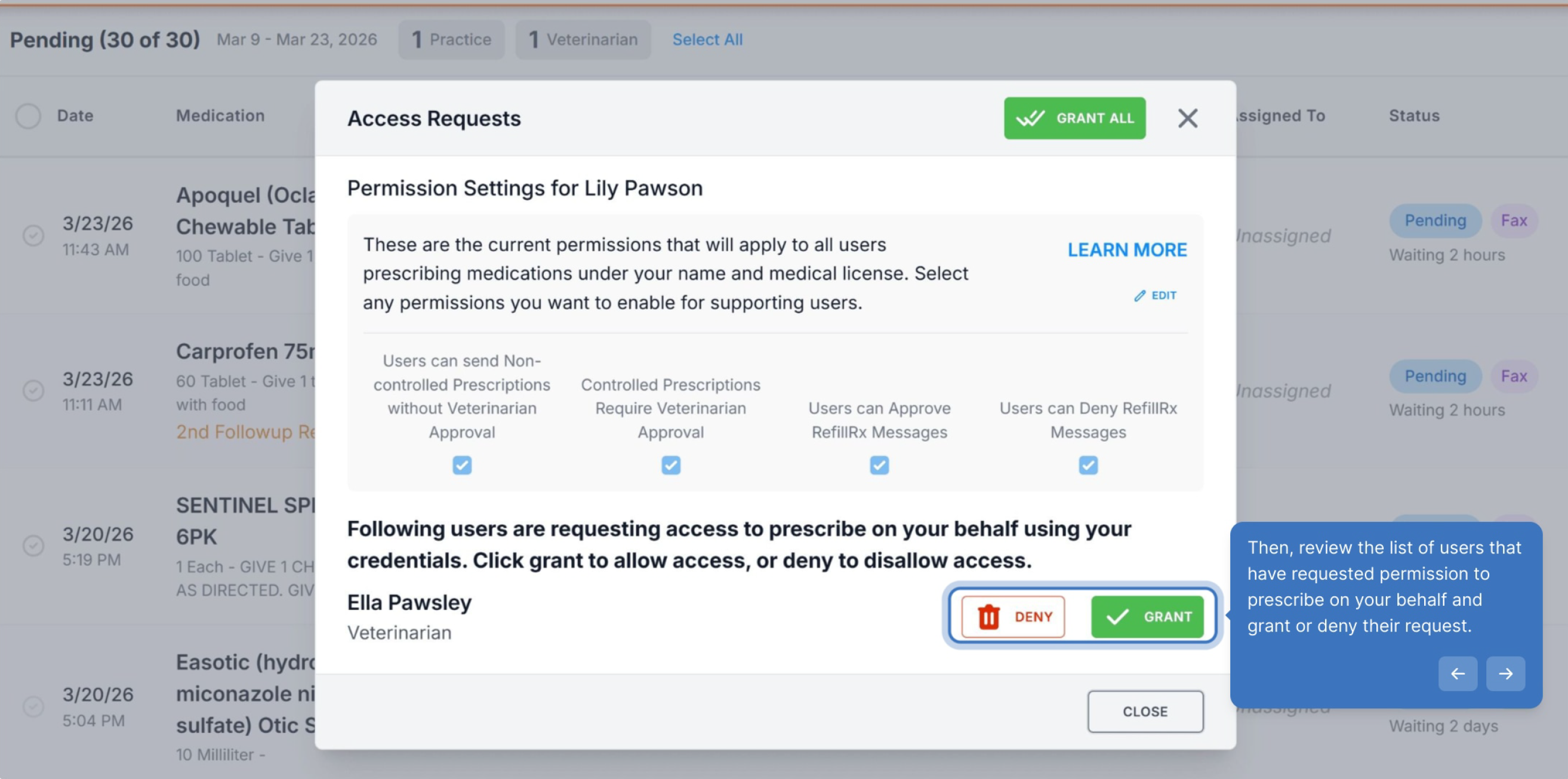
Review users that have requested permission to prescribe for you.
Then, review the list of users that have requested permission to prescribe on your behalf and grant or deny their request.
Walk-through Demo
Explore the steps by clicking through the demo below!
Was this article helpful?
That’s Great!
Thank you for your feedback
Sorry! We couldn't be helpful
Thank you for your feedback
Feedback sent
We appreciate your effort and will try to fix the article