Fax Setup - Notifying Pharmacies (click to view Supademo)
Learn how to track pharmacy confirmations, resend or manage failed notifications, and notify additional pharmacies of your practice’s new VetWay fax number.
TABLE OF CONTENTS
View Setup Details
Start by clicking the Setup - Fax button in the top toolbar to view your fax number and setup details.
- Click View Setup Details to see which pharmacies have updated their records with your new fax number and which still need to confirm.
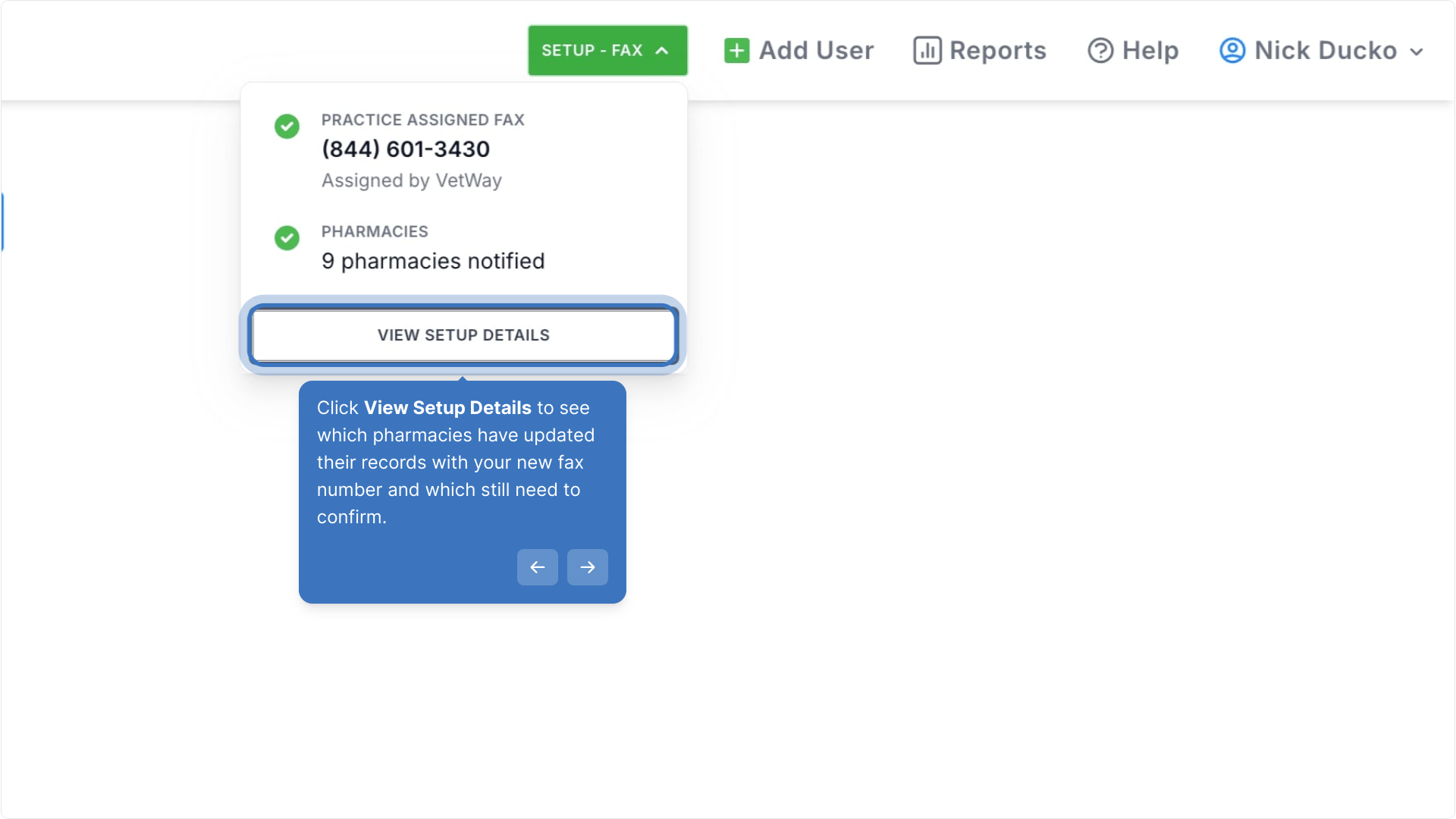
Fax Number: Pharmacy Notification Status
From the Fax number notifications screen, users can track which pharmacies have updated their records of the practice's new fax portal number.
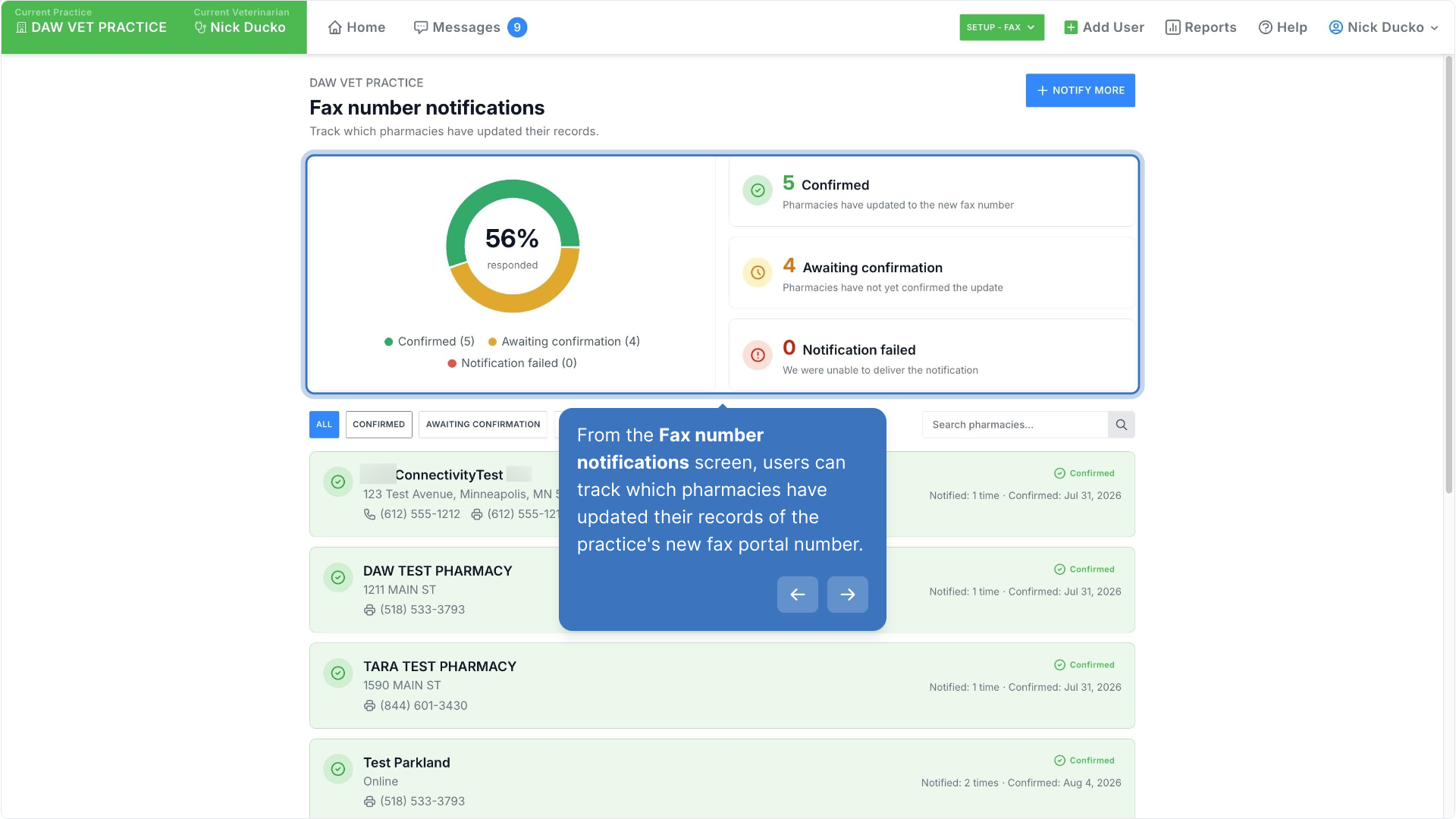
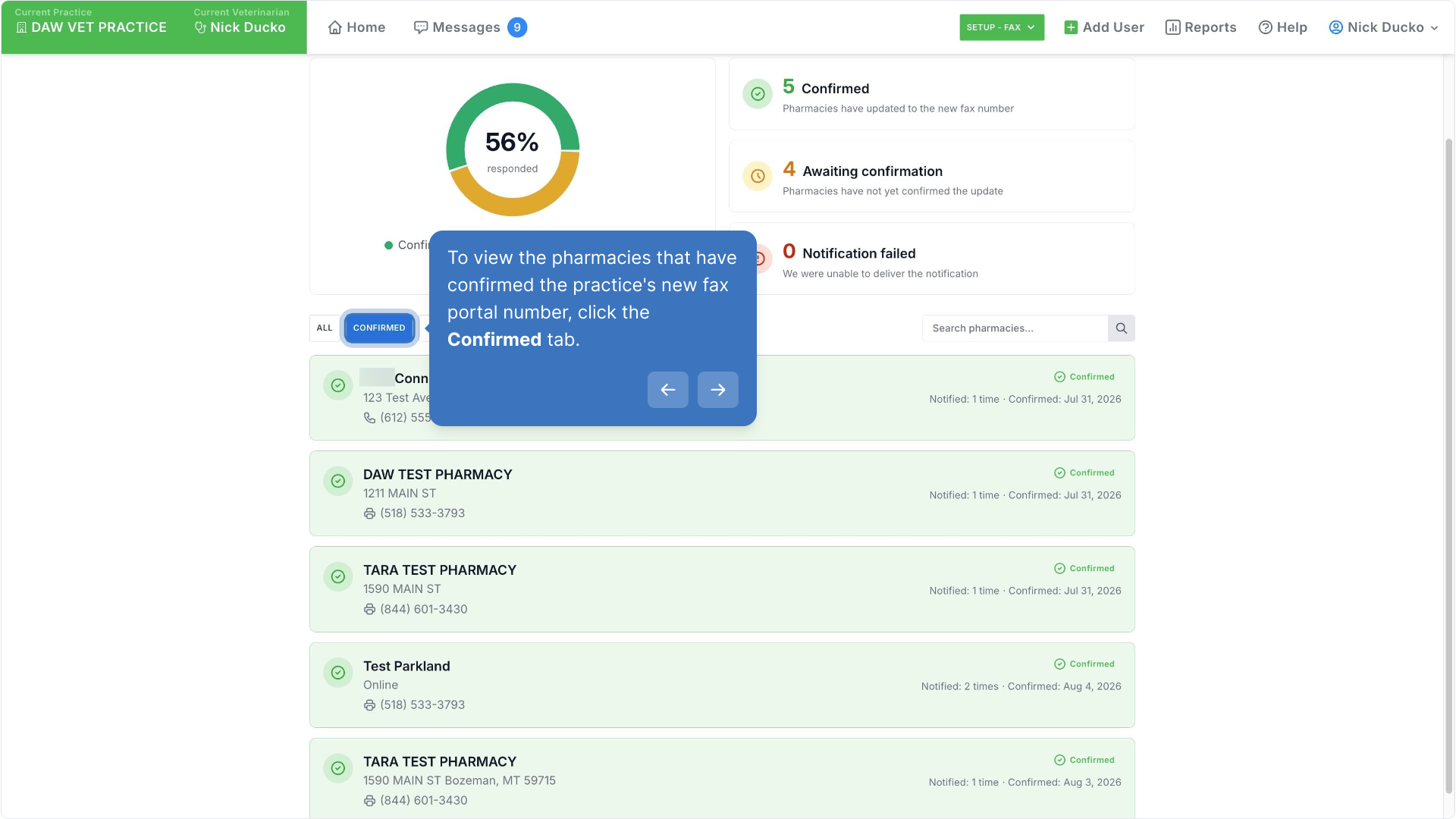
Confirmed
To view the pharmacies that have confirmed the practice's new fax portal number, click the Confirmed tab.
Awaiting Confirmation
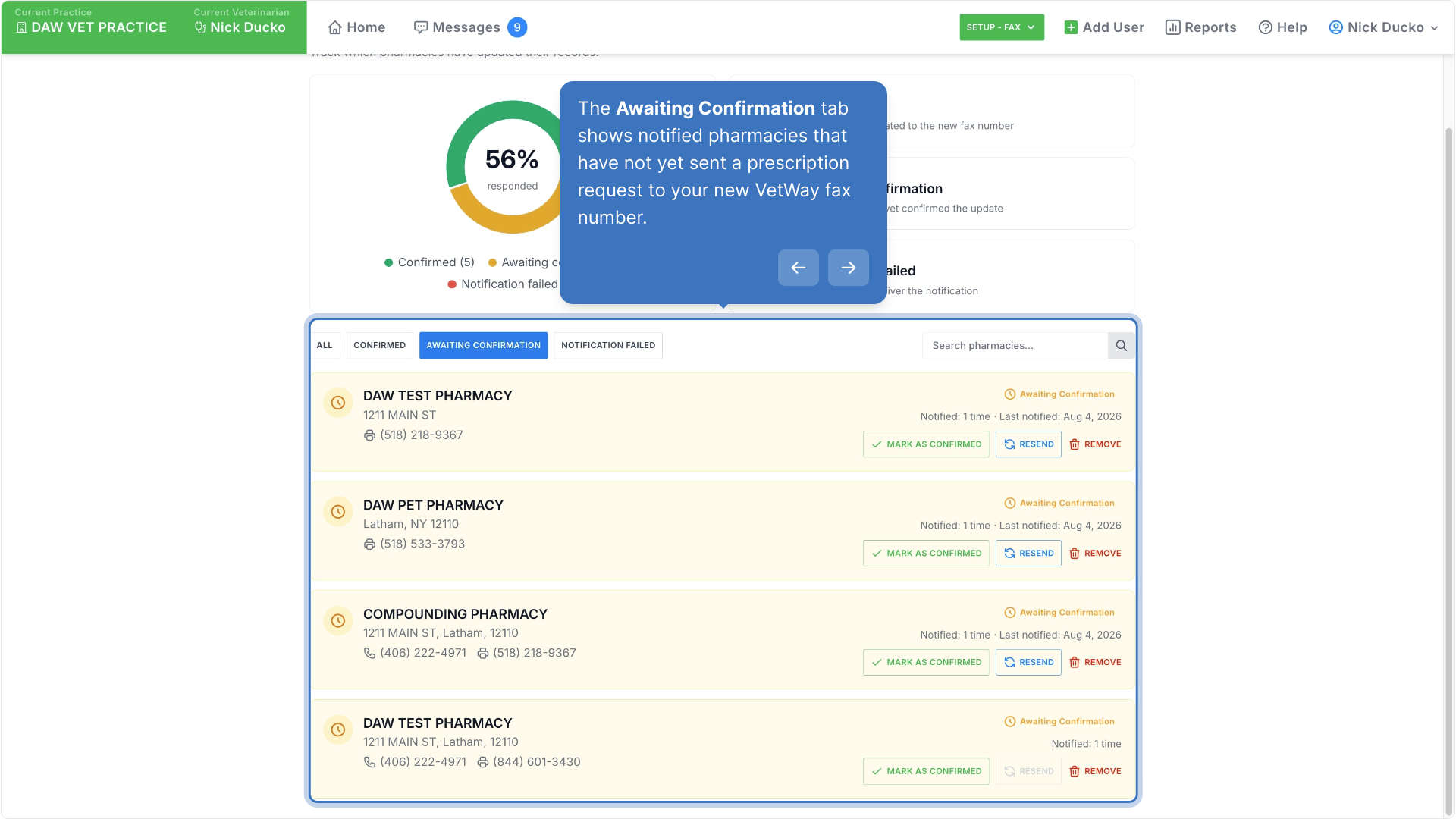
The Awaiting Confirmation tab shows notified pharmacies that have not yet sent a prescription request to your new VetWay fax number.
- VetWay will automatically mark a pharmacy as confirmed when we receive a prescription request from them at your new fax number. If someone at your practice independently verifies that the pharmacy has updated the number, you can also click Mark as confirmed.
- VetWay will automatically resend the notification after 48 hours if confirmation has not been received, up to a maximum of 3 attempts. You can also manually resend a notification, as long as it has been at least 24 hours since the last attempt.
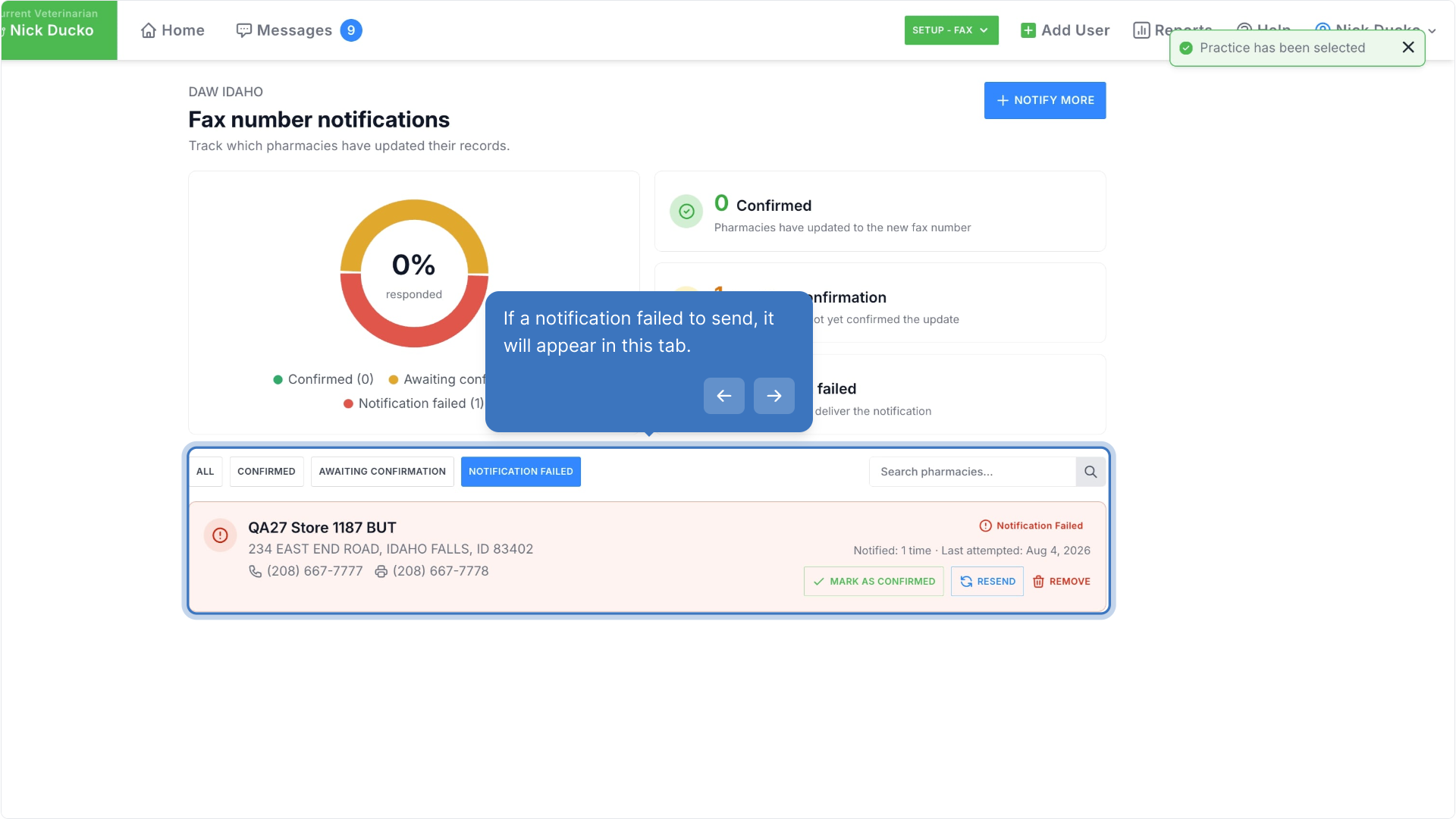
The Notification failed tab will filter to pharmacies with failed notifications.
- Just like in the Awaiting Confirmation tab, failed notifications can be marked as confirmed if independently verified with the pharmacy or re-sent.
- To delete an unresolved failed notification, click the Remove button.
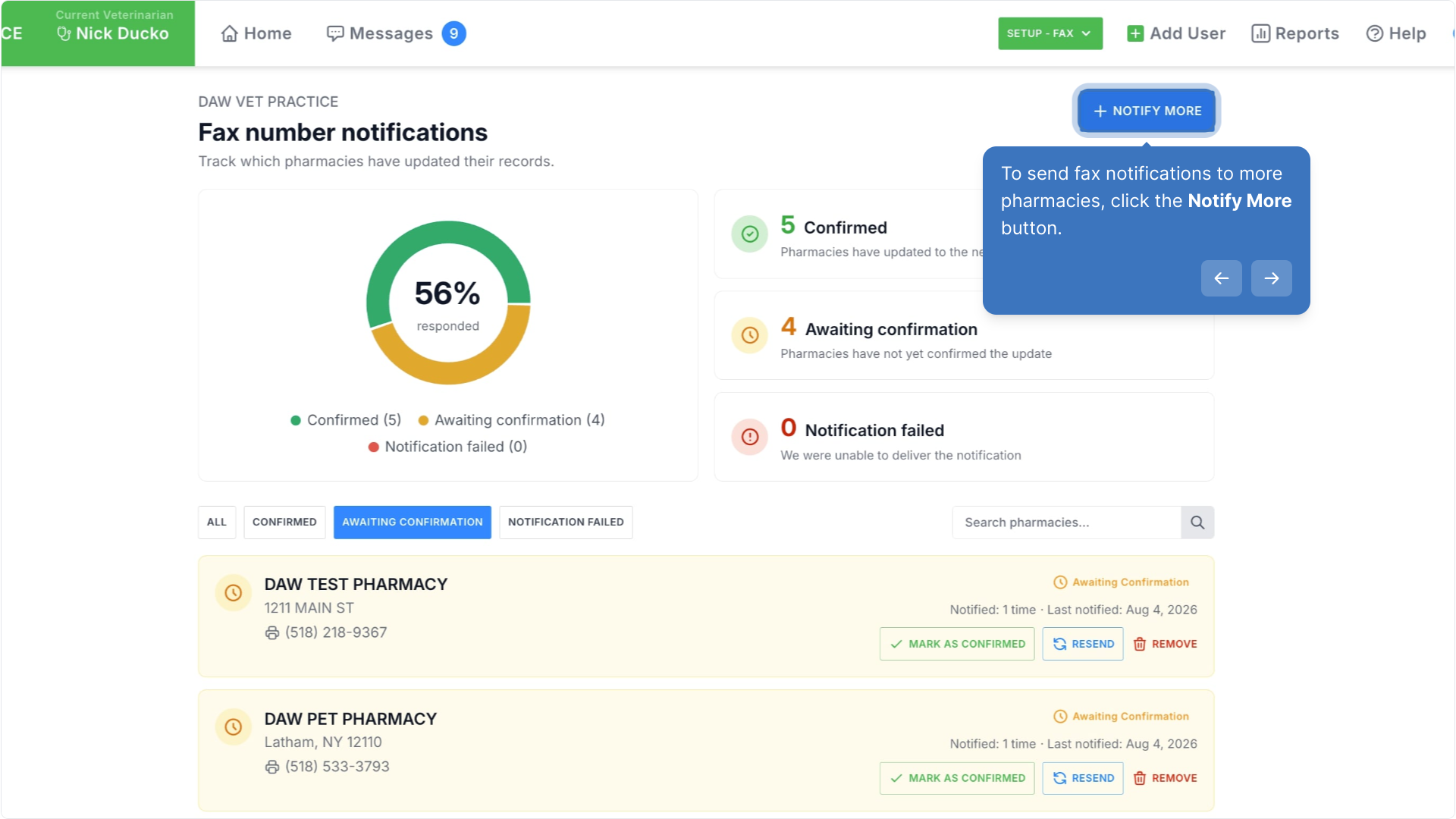
Notify More
To send fax notifications to more pharmacies, click the Notify More button.
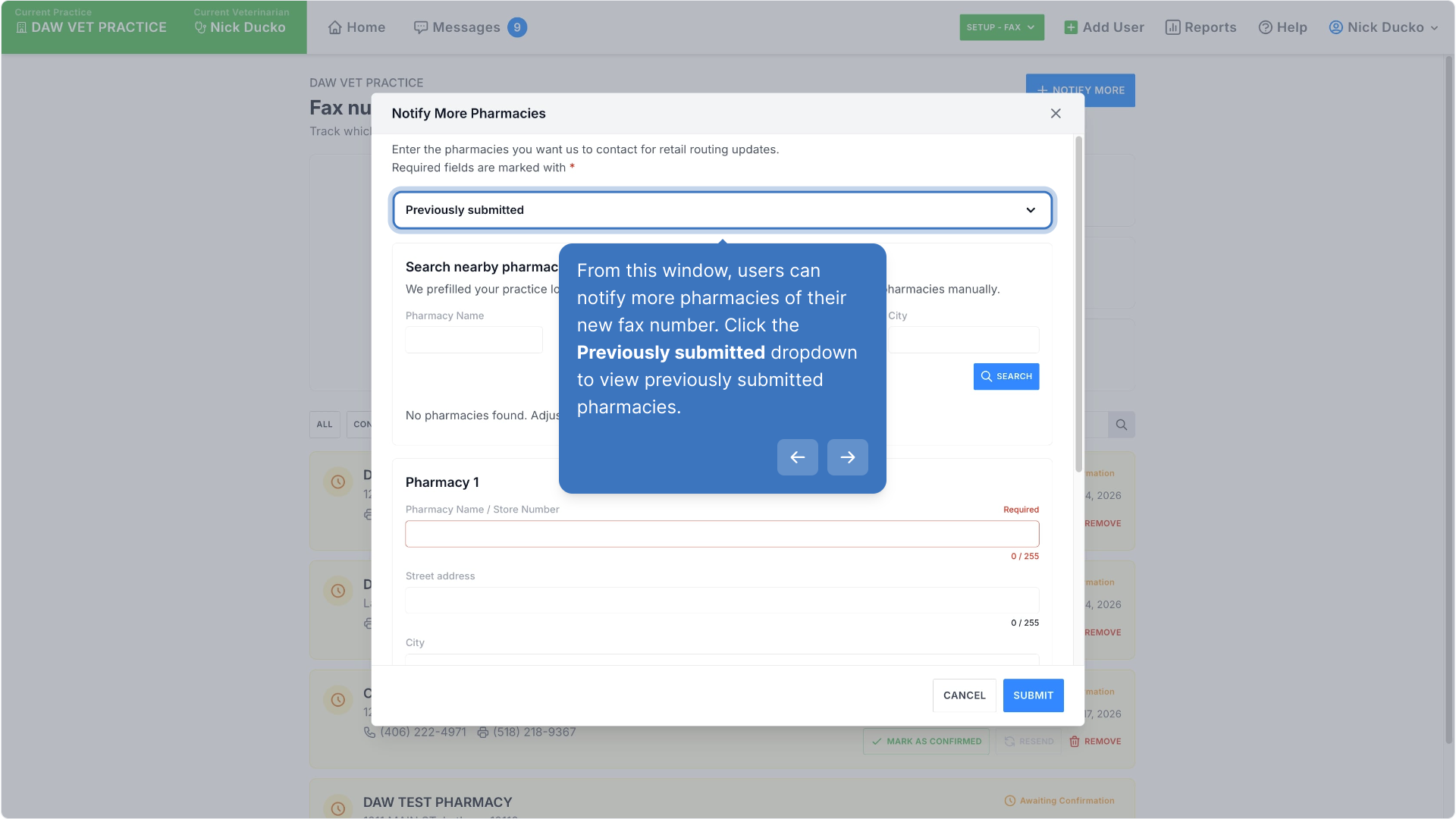
From this window, users can notify more pharmacies of their new fax number. Click the Previously submitted dropdown to view previously submitted pharmacies.
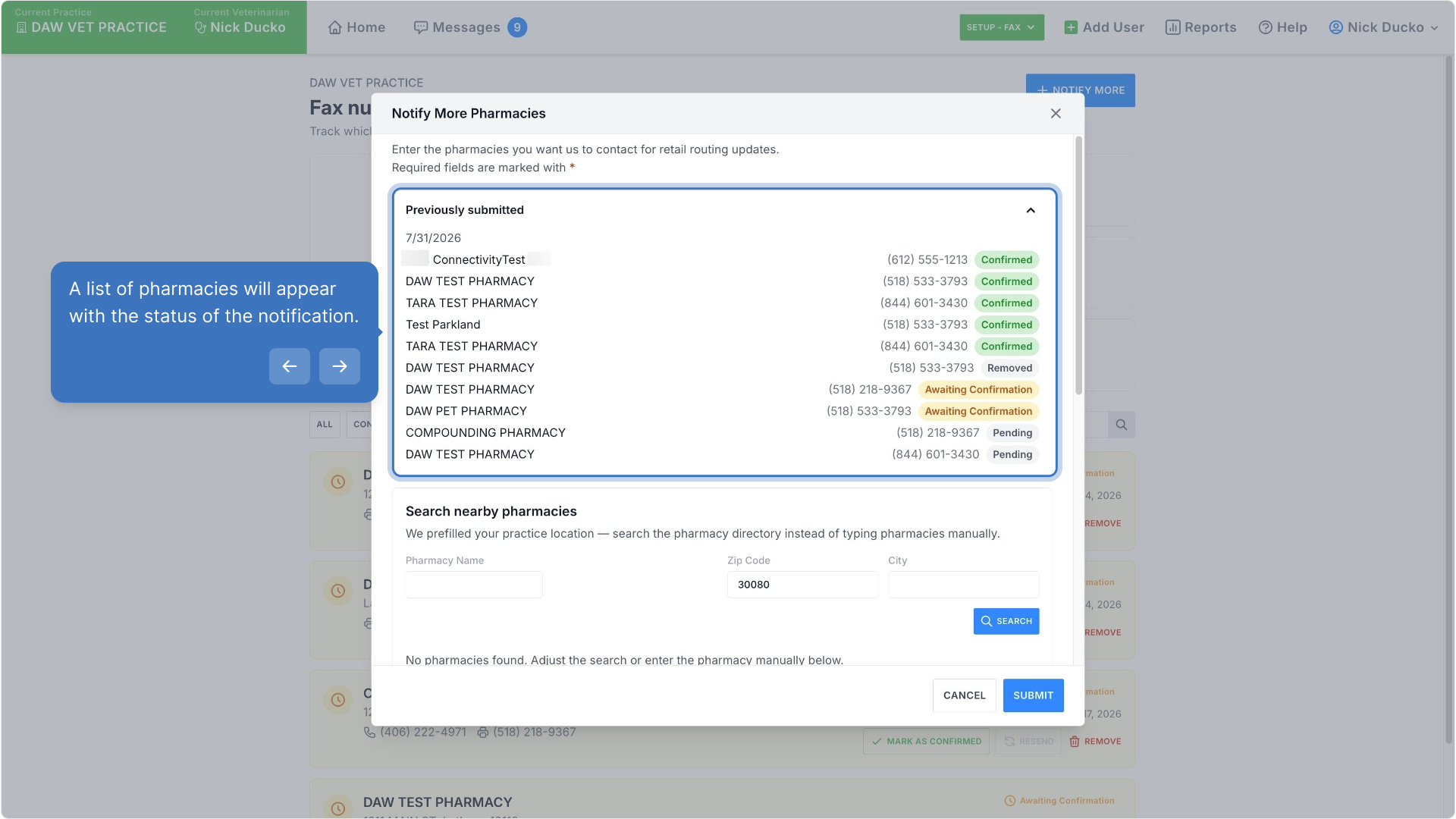
A list of pharmacies will appear with the status of the notification.
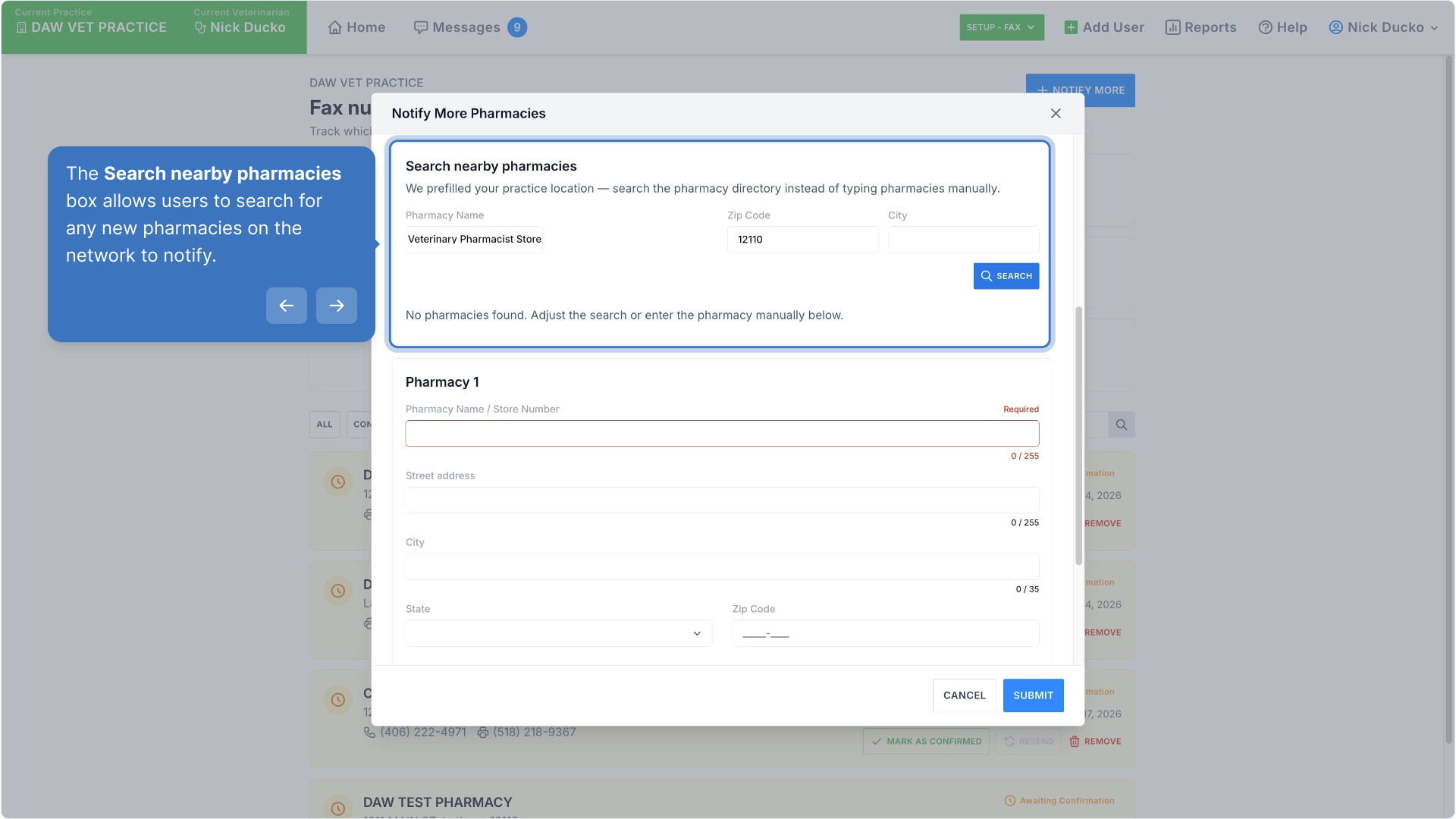
The Search nearby pharmacies box allows users to search for any new pharmacies on the network to notify.
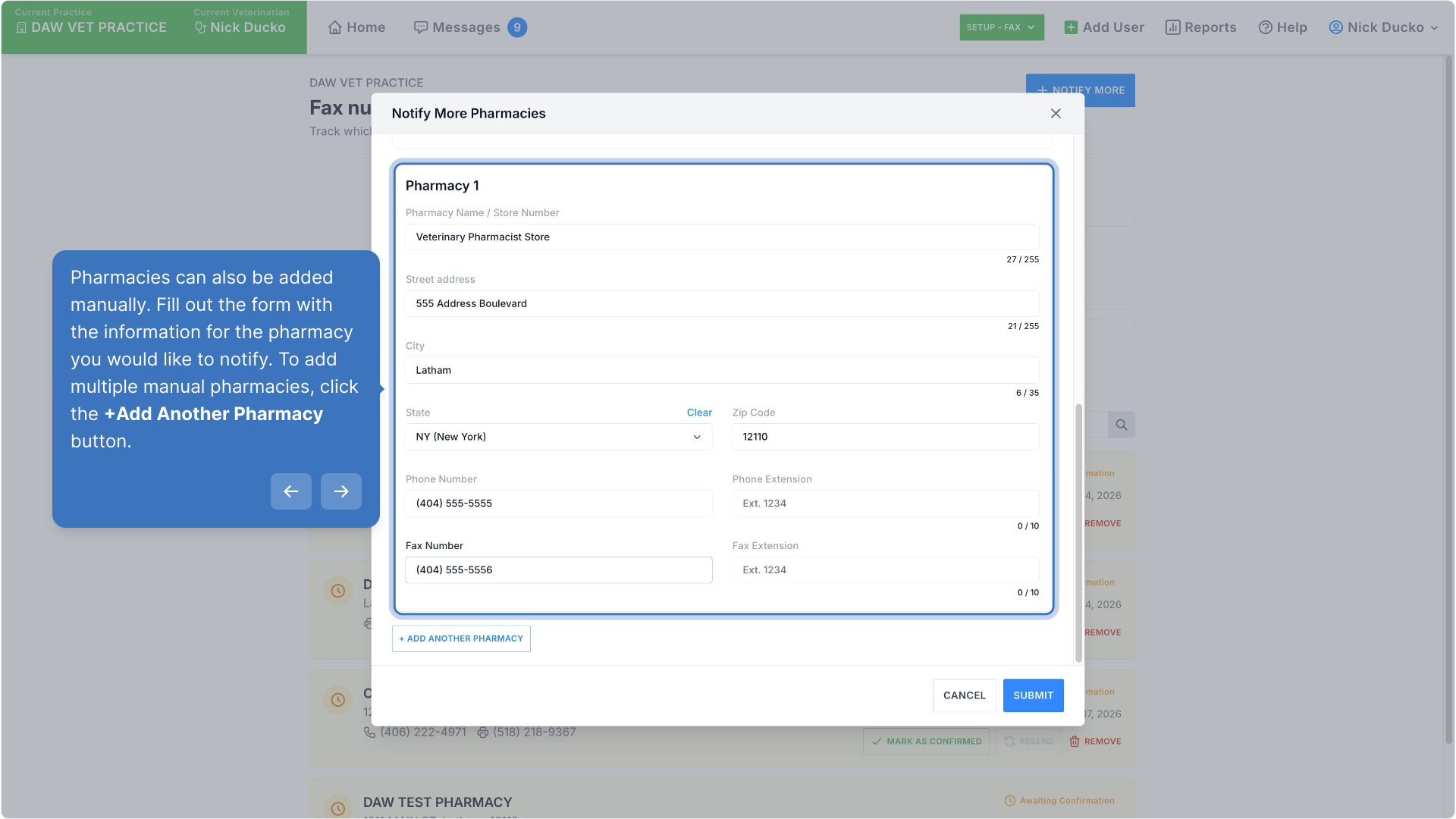
Pharmacies can also be added manually. Fill out the form with the information for the pharmacy you would like to notify. To add multiple manual pharmacies, click the +Add Another Pharmacy button.
Once you have selected or added all new pharmacies that you wish to notify, click Submit.
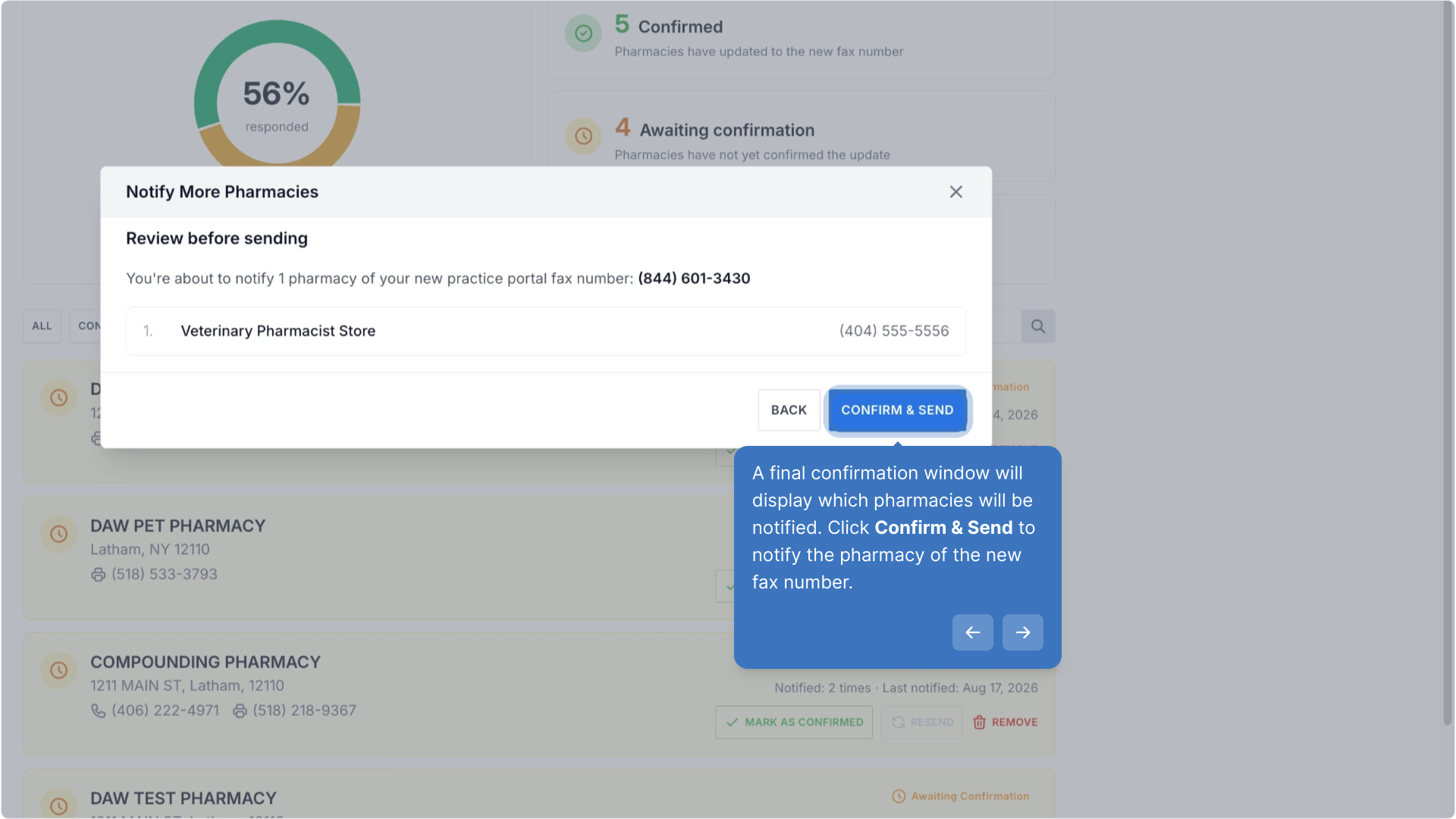
A final confirmation window will display which pharmacies will be notified. Click Confirm & Send to notify the pharmacy of the new fax number.
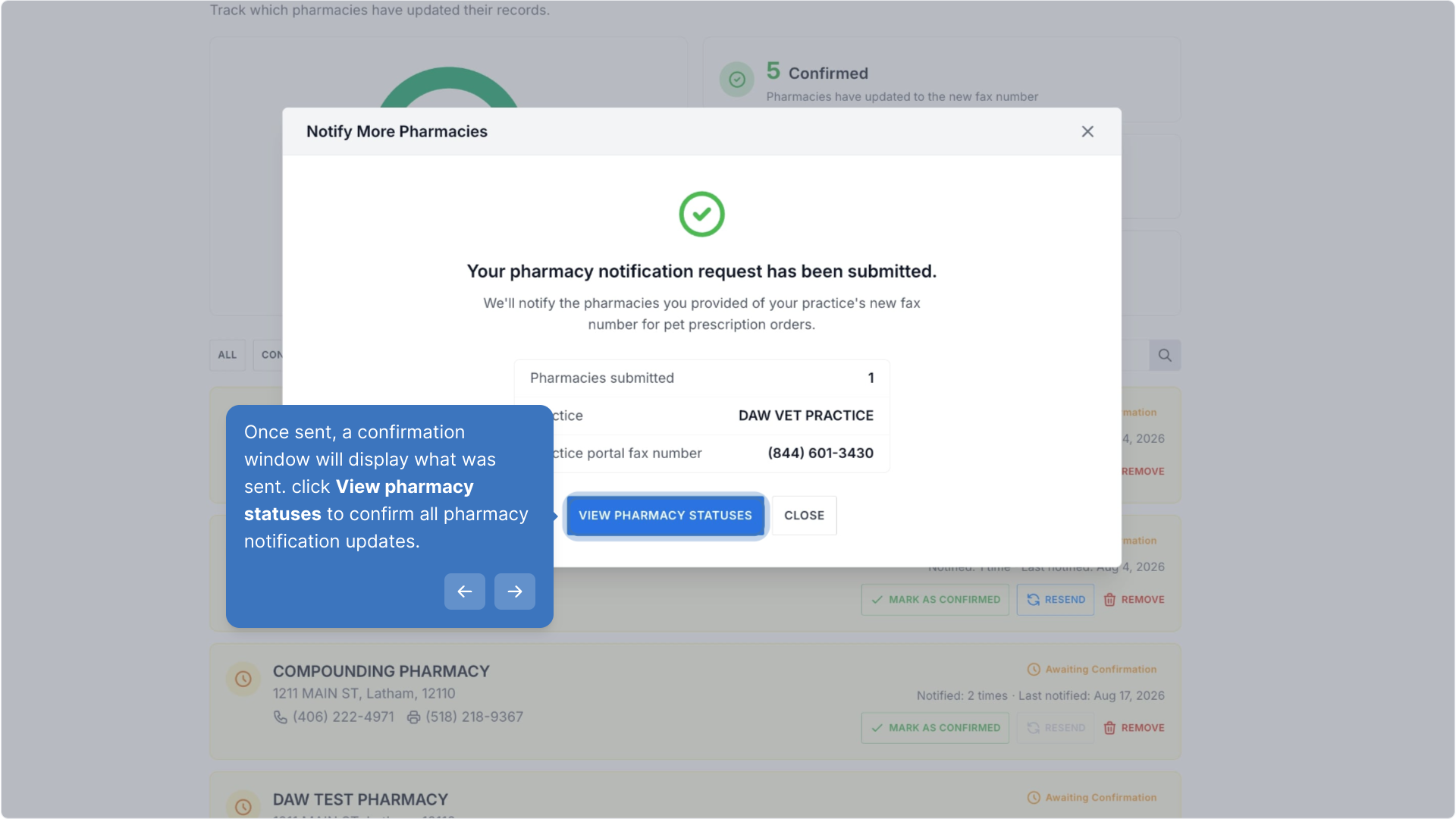
Once sent, a confirmation window will display what was sent. click View pharmacy statuses to confirm all pharmacy notification updates.
Walk-through Demo
Explore the steps by clicking through the demo below!
Was this article helpful?
That’s Great!
Thank you for your feedback
Sorry! We couldn't be helpful
Thank you for your feedback
Feedback sent
We appreciate your effort and will try to fix the article