Using the Toolbar in Fax Mode (click to view Supademo)
TABLE OF CONTENTS
Open Fax Mode
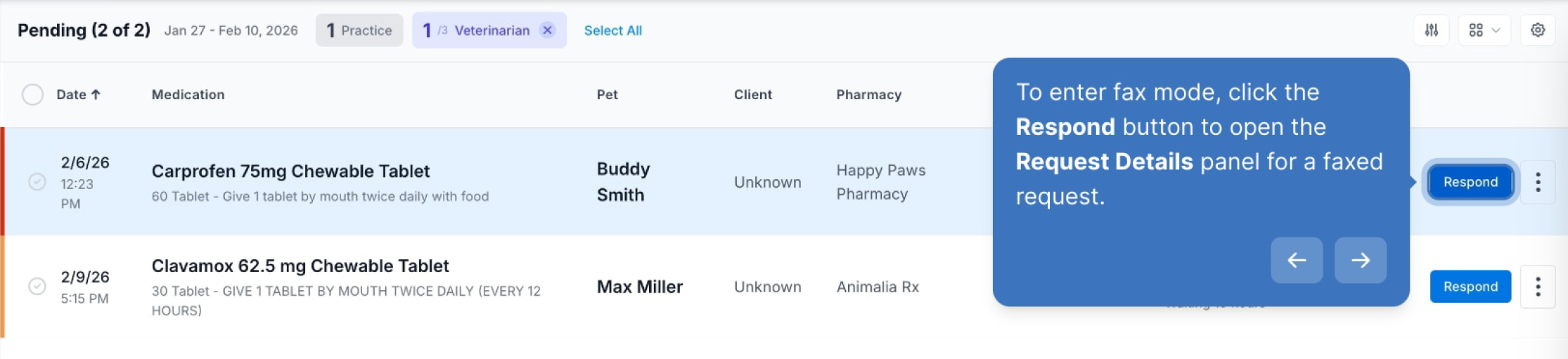
While managing prescription requests, VetWay allows users to use Fax Mode to view, annotate, approve, and decline faxed prescription requests. Click the Respond button to open the Request Details panel for a faxed request.
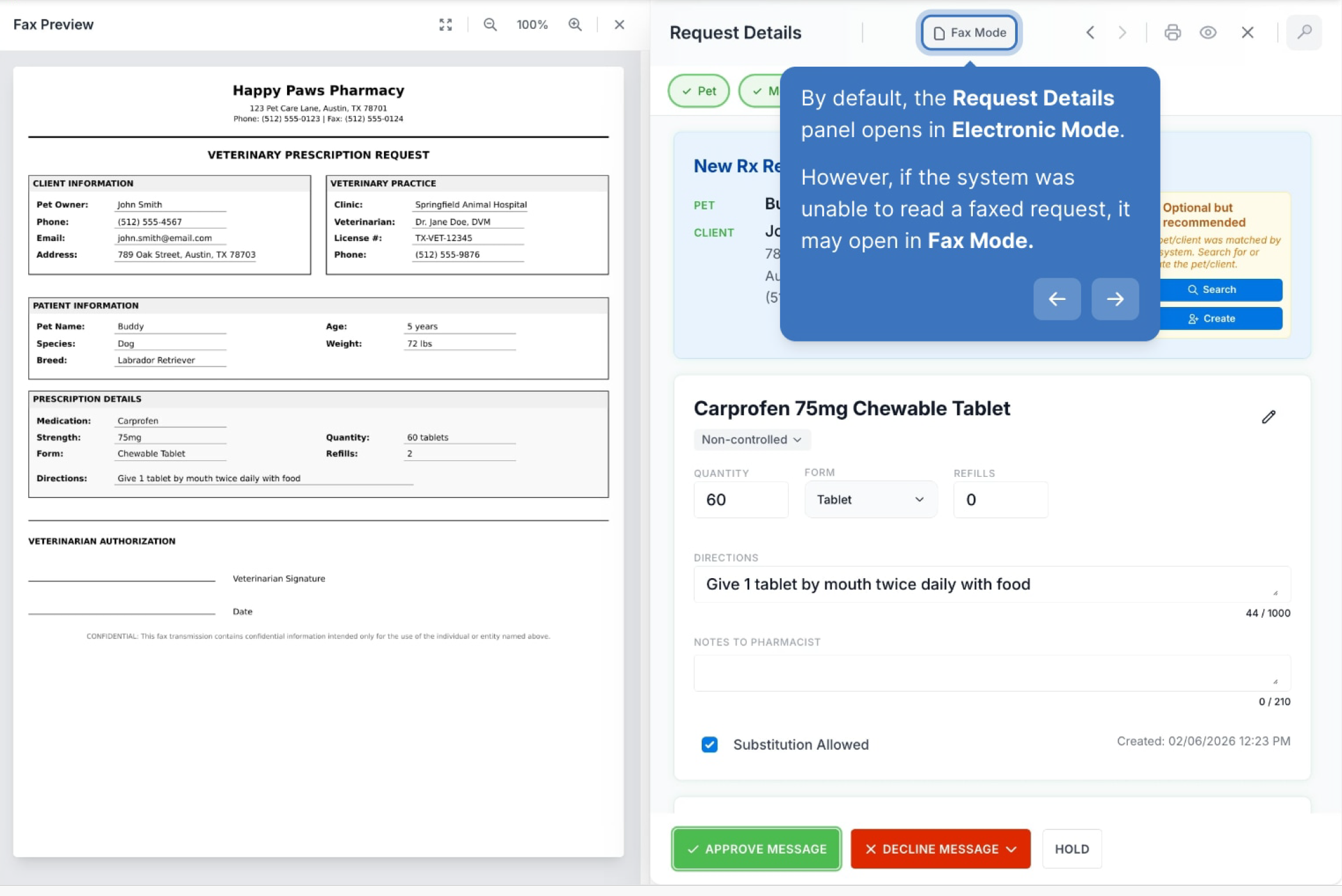
By default, the Request Details panel opens in Electronic Mode. However, if the system was unable to read a faxed request, it may open in Fax Mode.
Toolbar
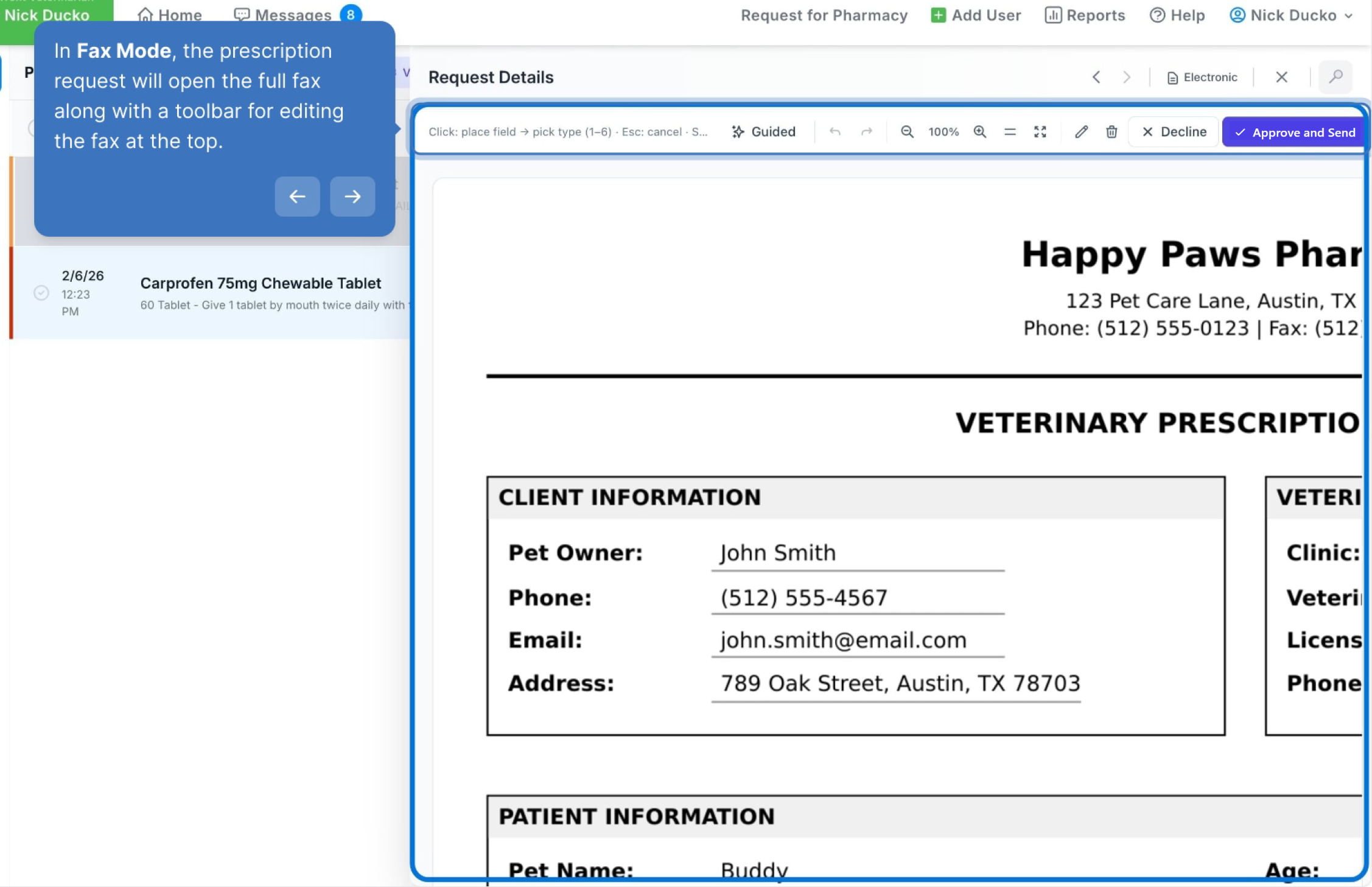
In Fax Mode, the prescription request will open the full fax along with a toolbar for editing the fax at the top.
Adjusting the Fax View
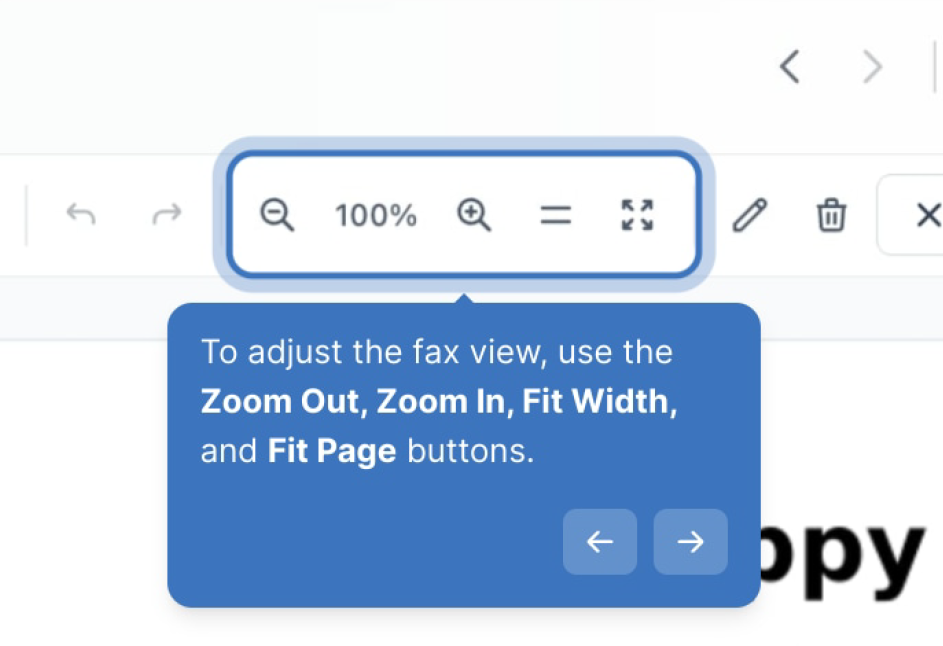
To adjust the fax view, use the Zoom Out, Zoom In, Fit Width, and Fit Page buttons.
Pen Mode
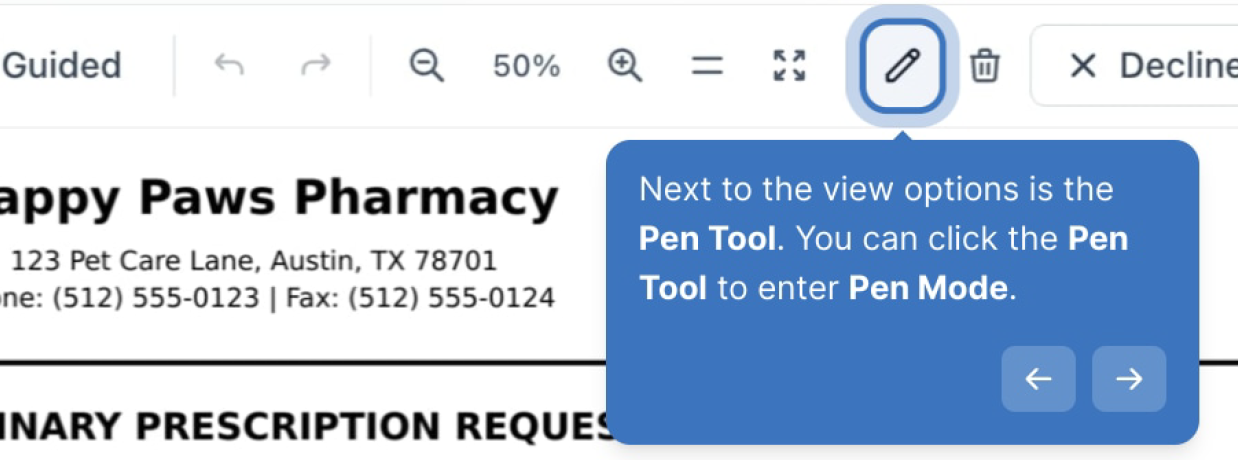
Next to the view options is the Pen Tool. Use the Pen Tool to annotate the fax freehand.
To exit Pen Mode, deselect the Pen Tool.
Undo/Redo
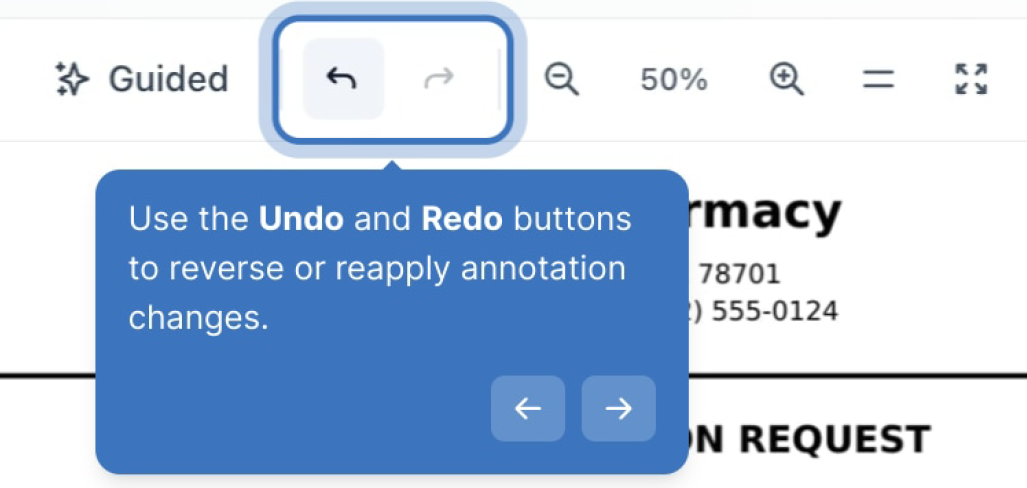
Use the Undo and Redo buttons to reverse or reapply annotation changes.
Whiteout Tool
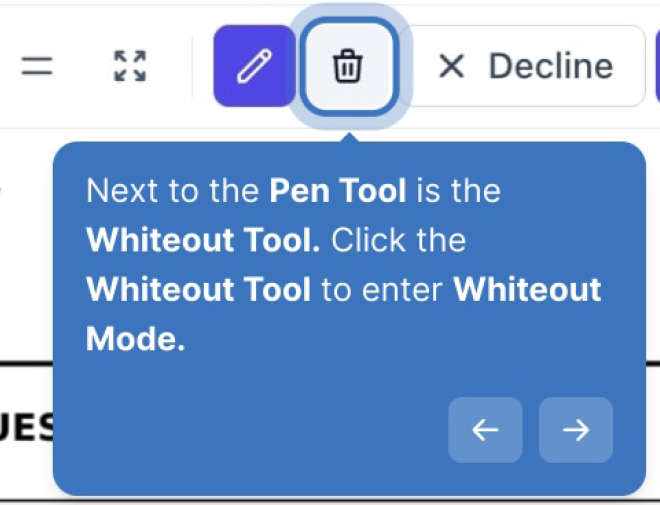
Next to the Pen Tool is the Whiteout Tool. Click the Whiteout Tool to enter Whiteout Mode. Use the Whiteout Tool to cover portions of the fax, similar to using whiteout on paper.
To exit whiteout mode, deselect the Whiteout Tool.
Annotate
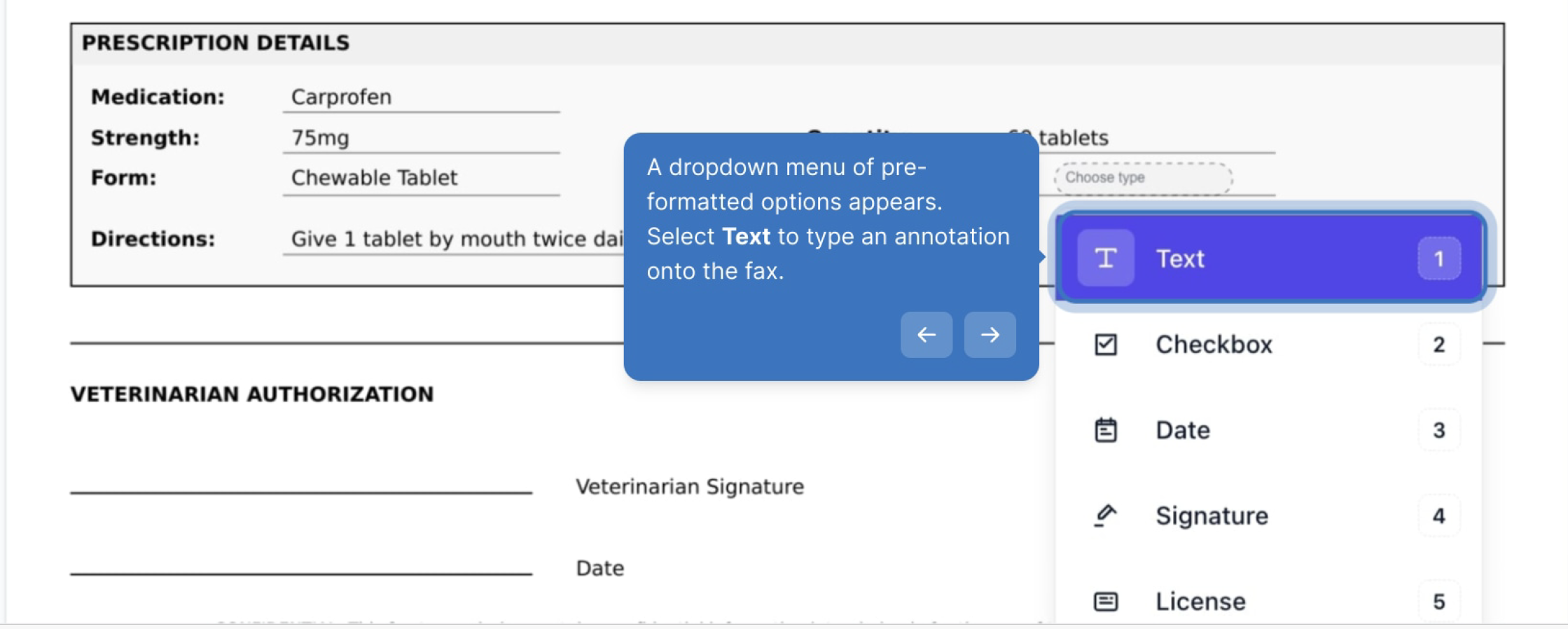
The fax can also be annotated using preset tools. Click anywhere on the fax to add an annotation.
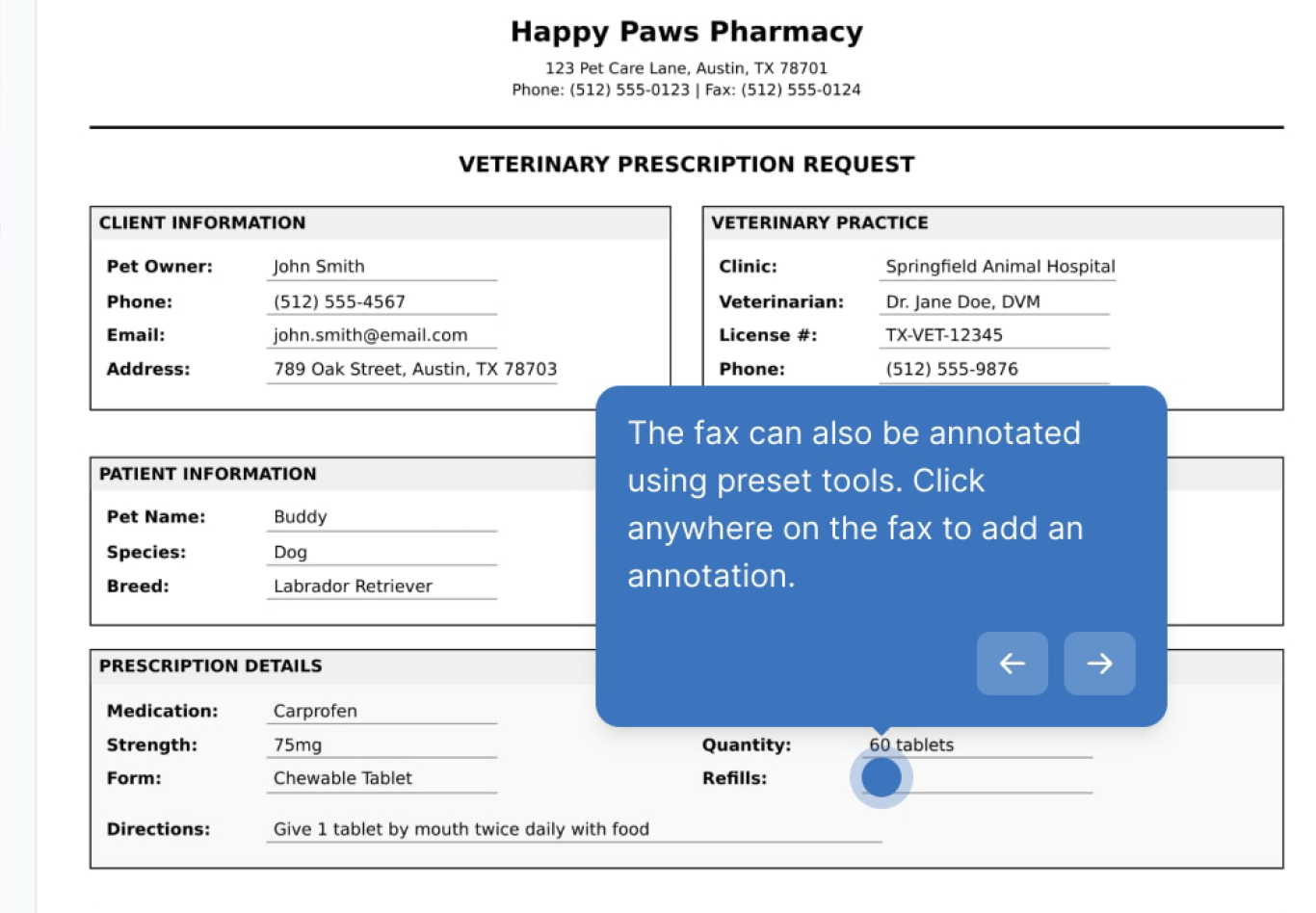
Select an option from the dropdown menu, and it will be added to the document.
Walk-through Demo:
Explore the steps by clicking through the demo below!
Was this article helpful?
That’s Great!
Thank you for your feedback
Sorry! We couldn't be helpful
Thank you for your feedback
Feedback sent
We appreciate your effort and will try to fix the article