The following images show the setup steps for Veterinarians to on-board directly to Vetway Approval Portal and Vetway E-Prescribing. These are the basic steps a veterinarian user must complete to be added to an existing clinic/practice/hospital that is setup in Vetway.
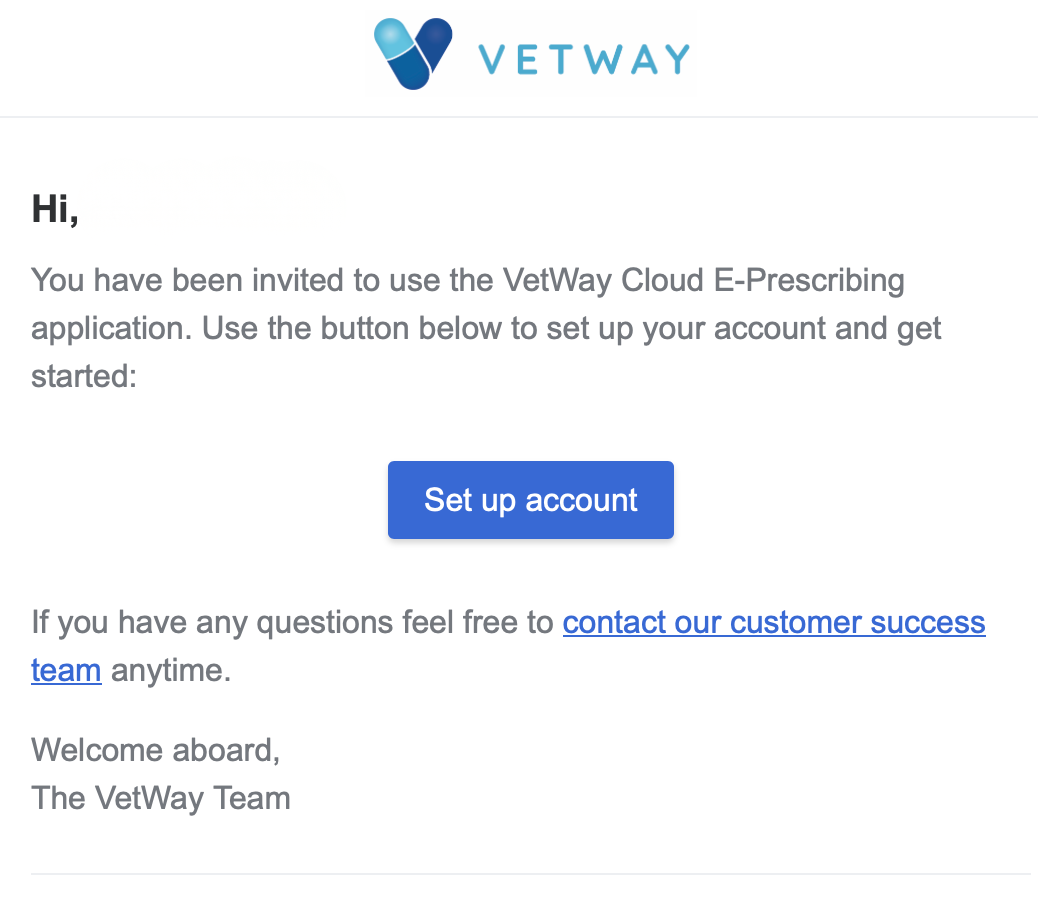
NOTE: If you do not already have an invite, ask an existing administrator on the Vetway Account to add you as a user. This will cause an INVITE email to be sent to you. This invite email has a setup account button you can click that will launch you in the following setup process.
The following steps must be complete to complete creation of your account.
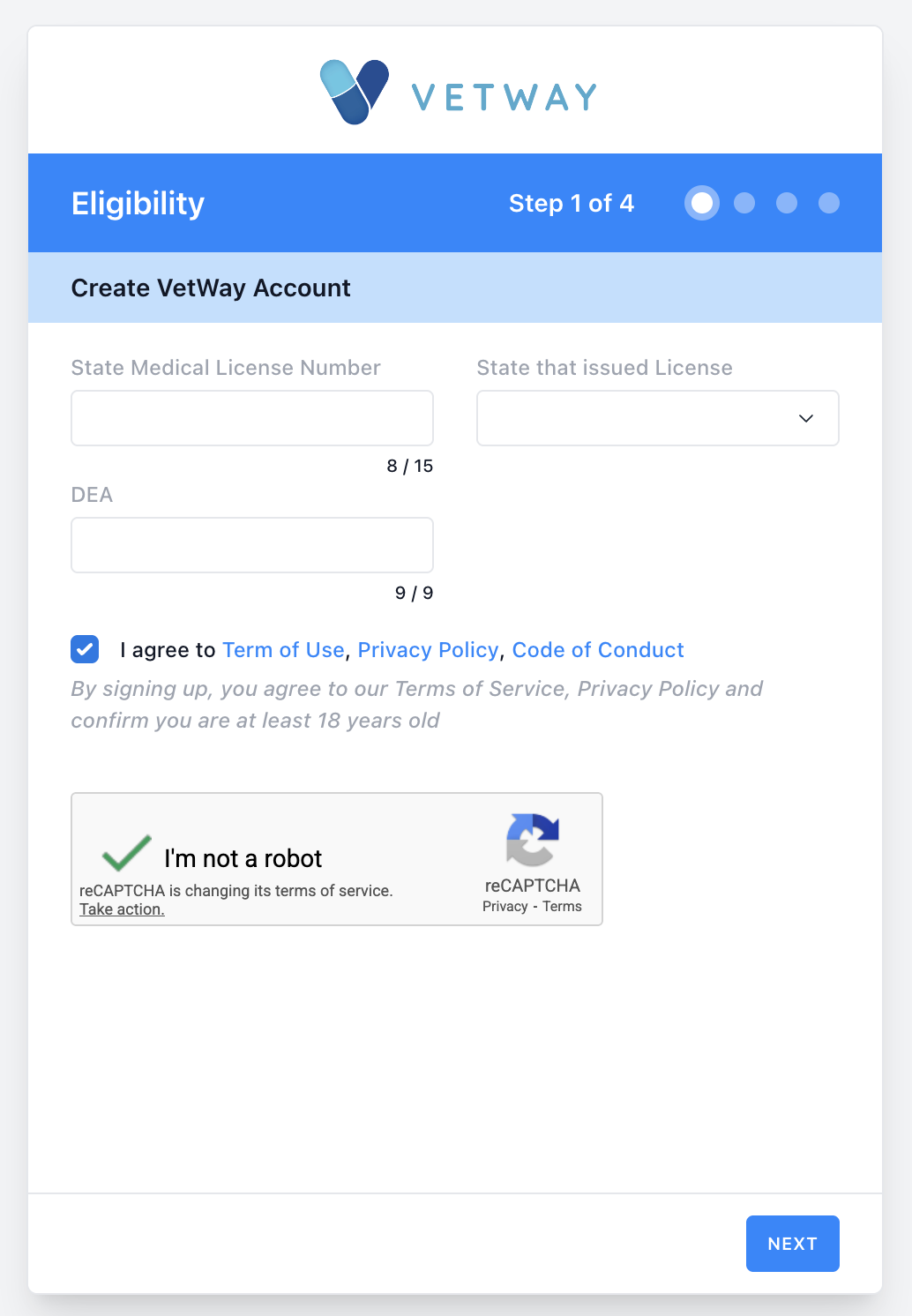
- Begin by entering your medical license, state of medical license, DEA if you have one and want to approve and prescribe controlled substances and check off you are not a robot.
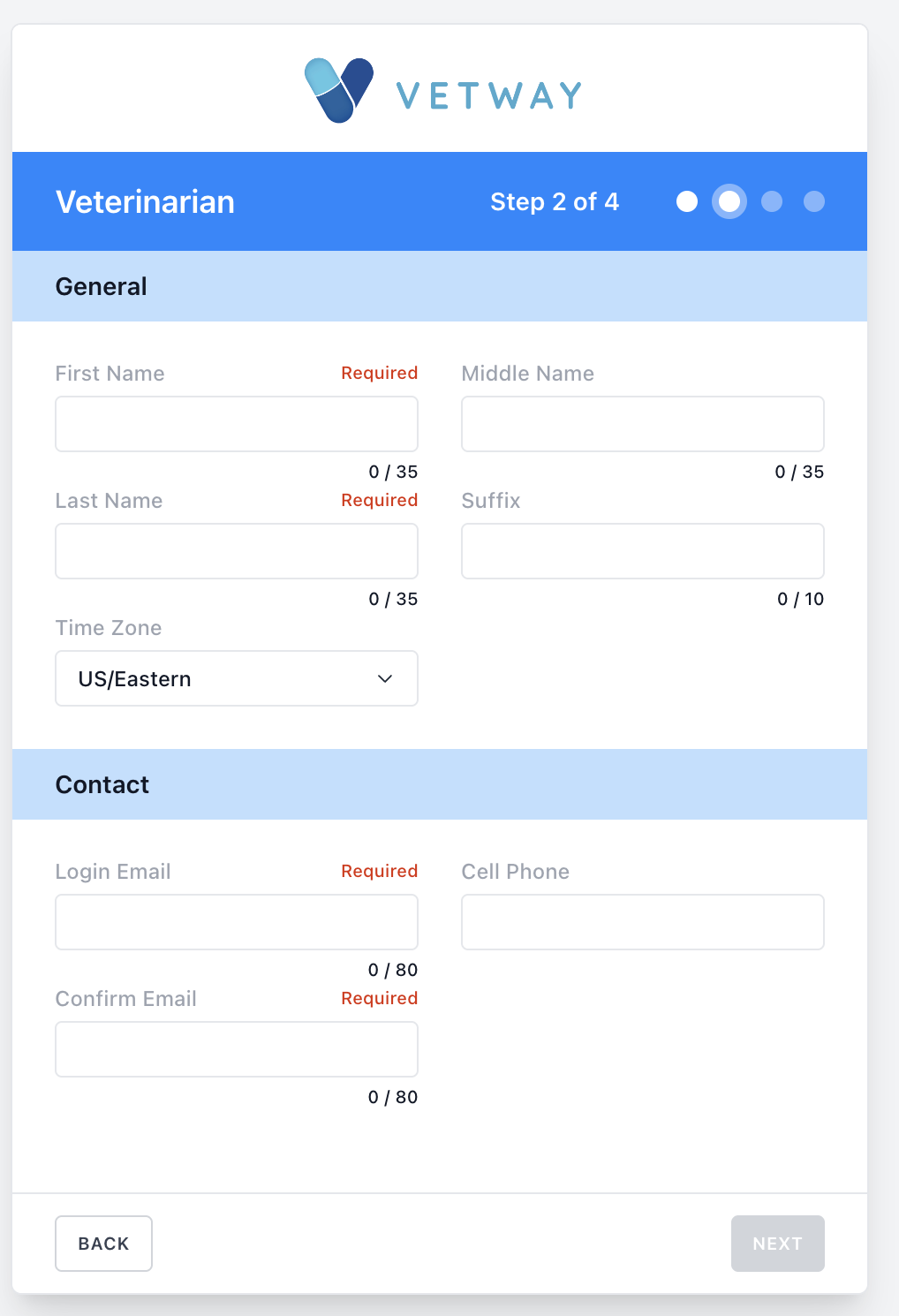
- Enter your full name, email and confirm your email. Other fields like cell phone are optional, but recommended.
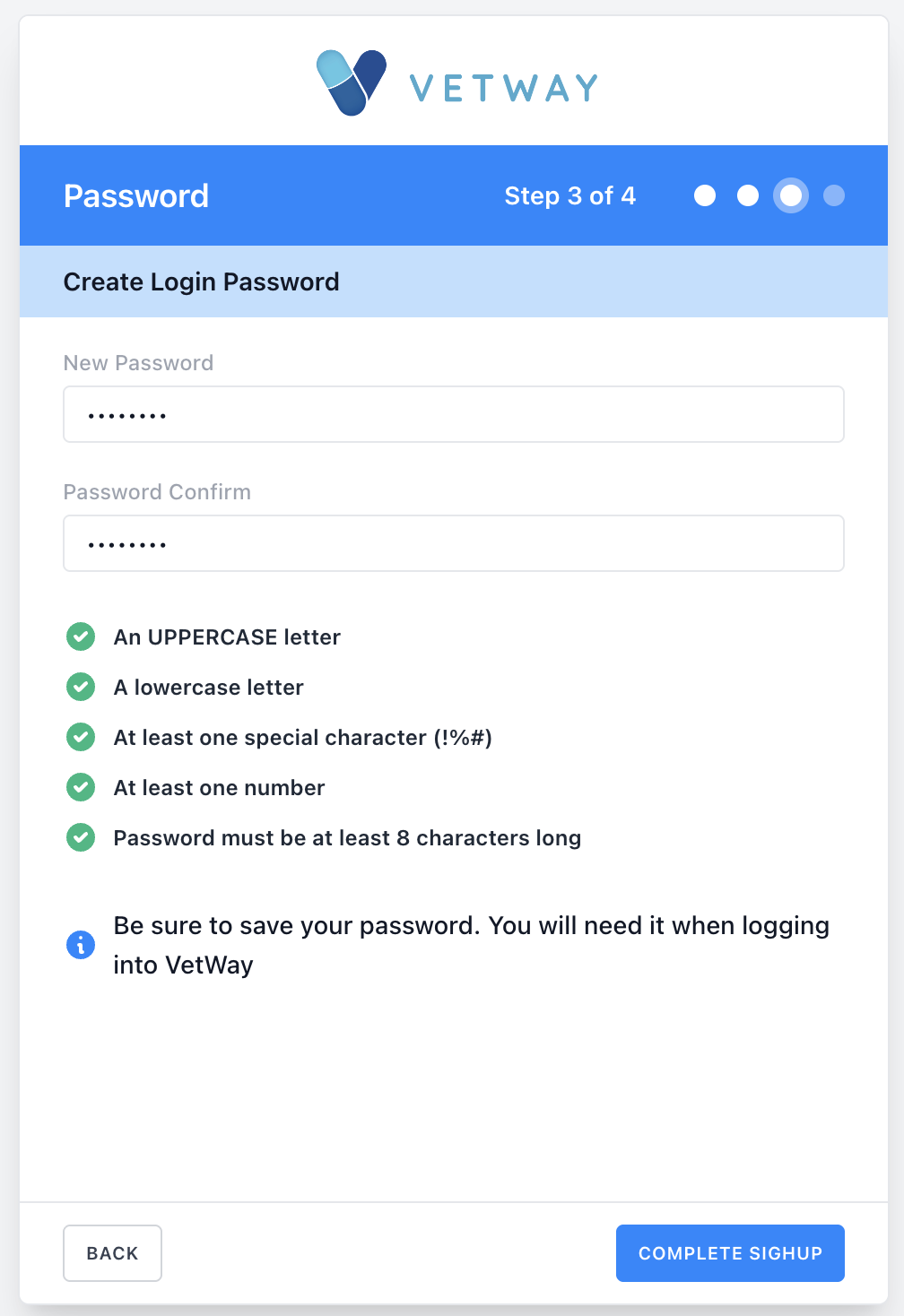
- Create a password and confirm the password
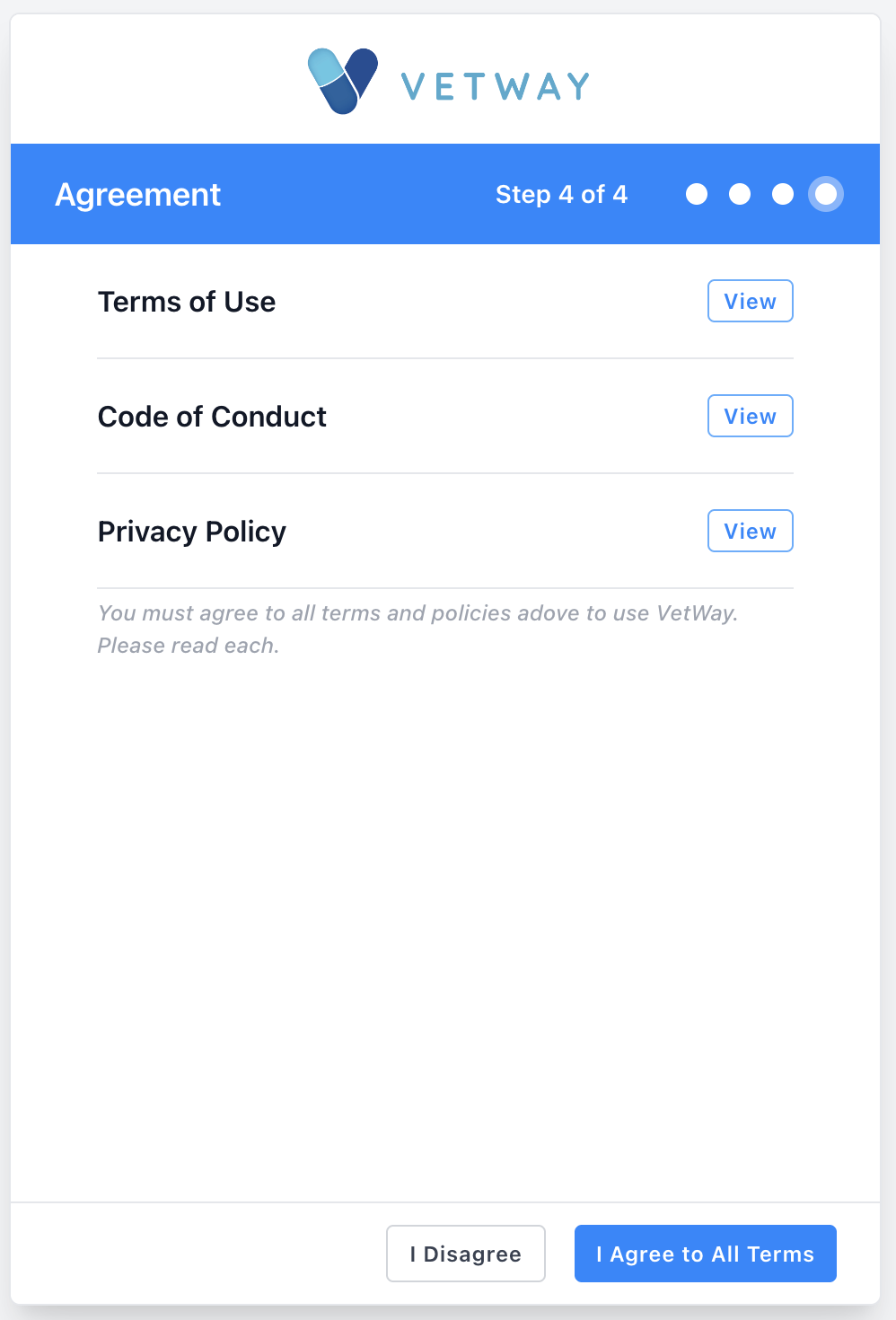
- Accept the terms.
The following screenshots show the process:
An E-Mail Confirmation of the account setup will be sent to you.
You are ready to login with your email and password you set: Login to https://tsu.vetway.com/
Was this article helpful?
That’s Great!
Thank you for your feedback
Sorry! We couldn't be helpful
Thank you for your feedback
Feedback sent
We appreciate your effort and will try to fix the article