Inviting Users to VetWay (click to view supademo)
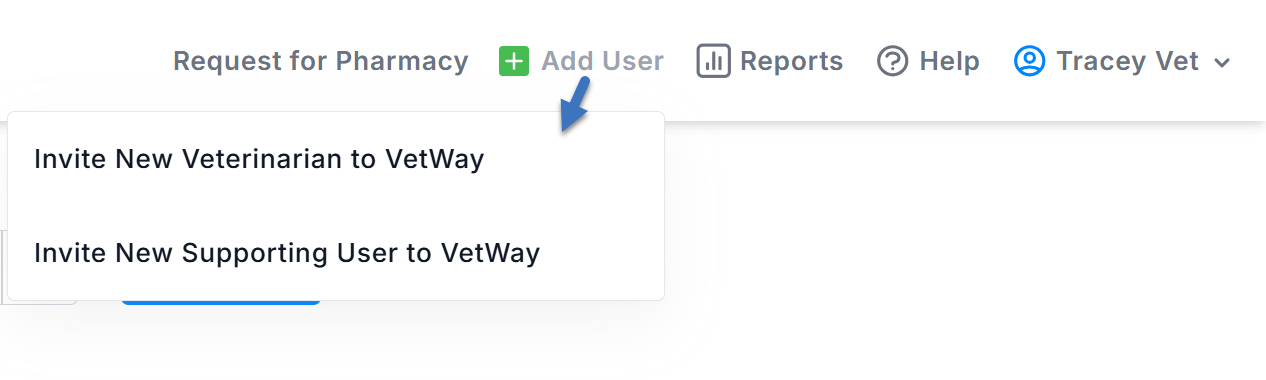
From the top bar in VetWay, click Add User to invite a new veterinarian or staff member to your practice.
- To add new veterinarian users, click Invite New Veterinarian to VetWay.
- To add new supporting user, select Invite New Supporting User to VetWay.
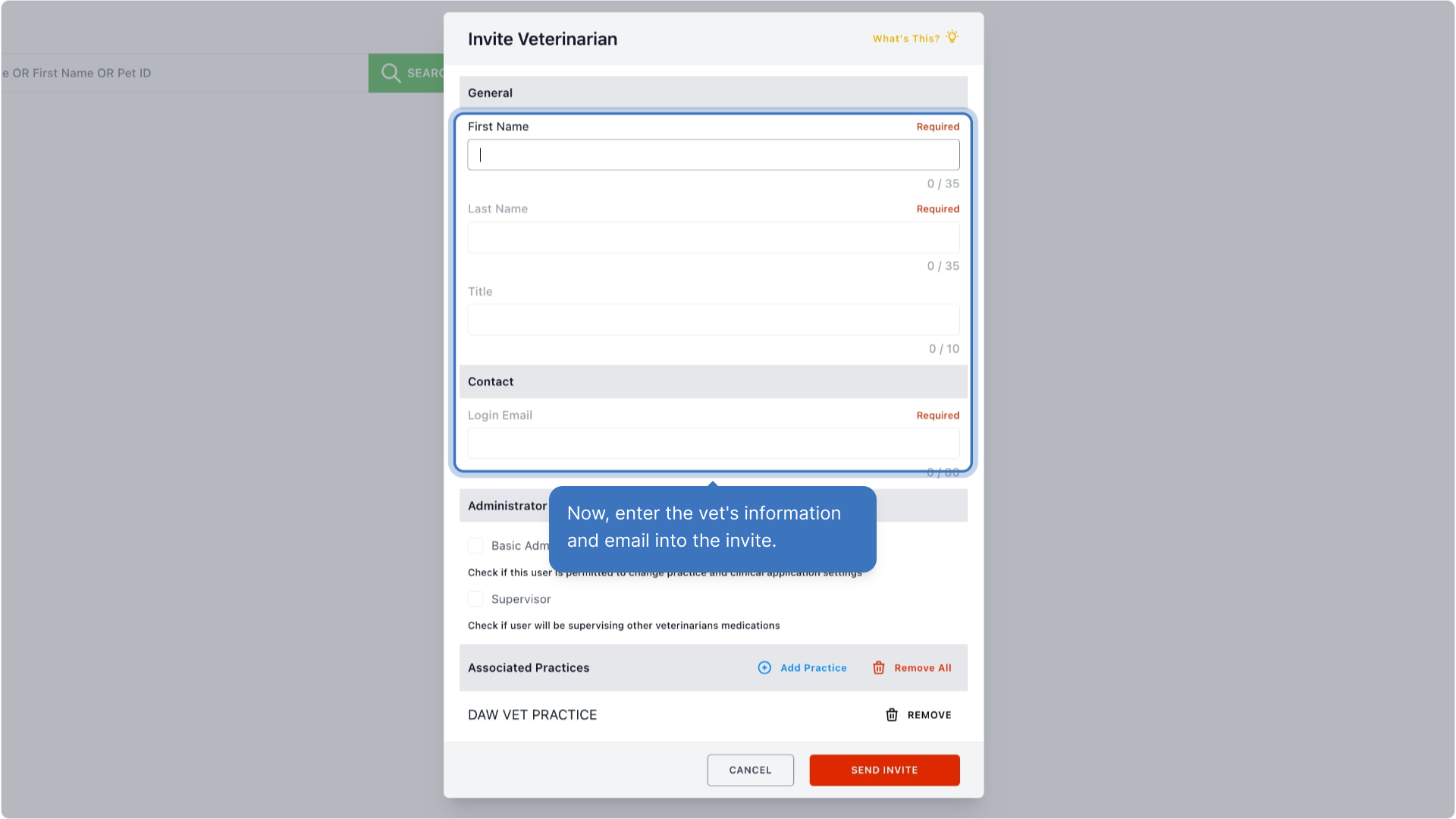
Enter the person's name and email into the invite.
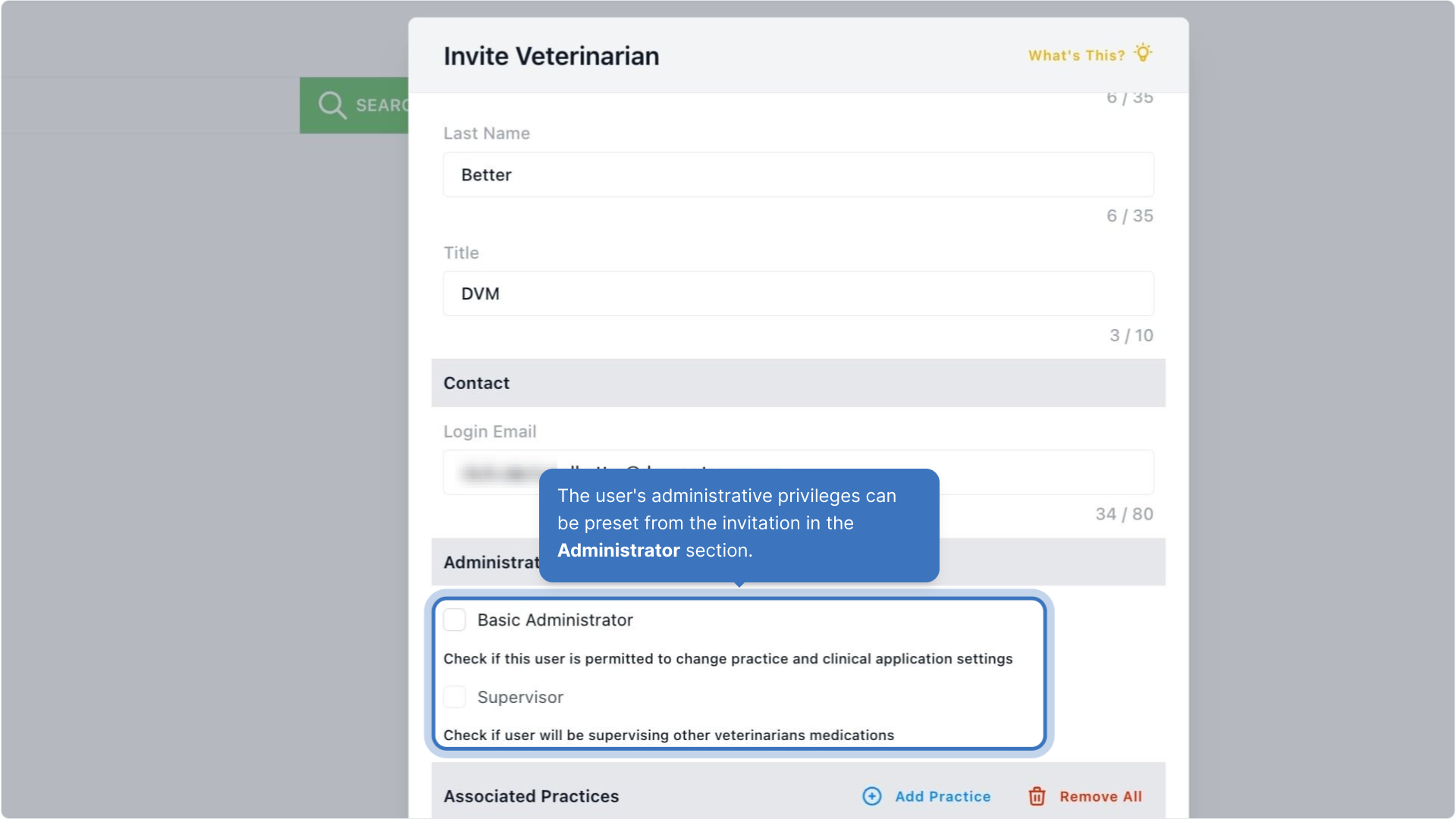
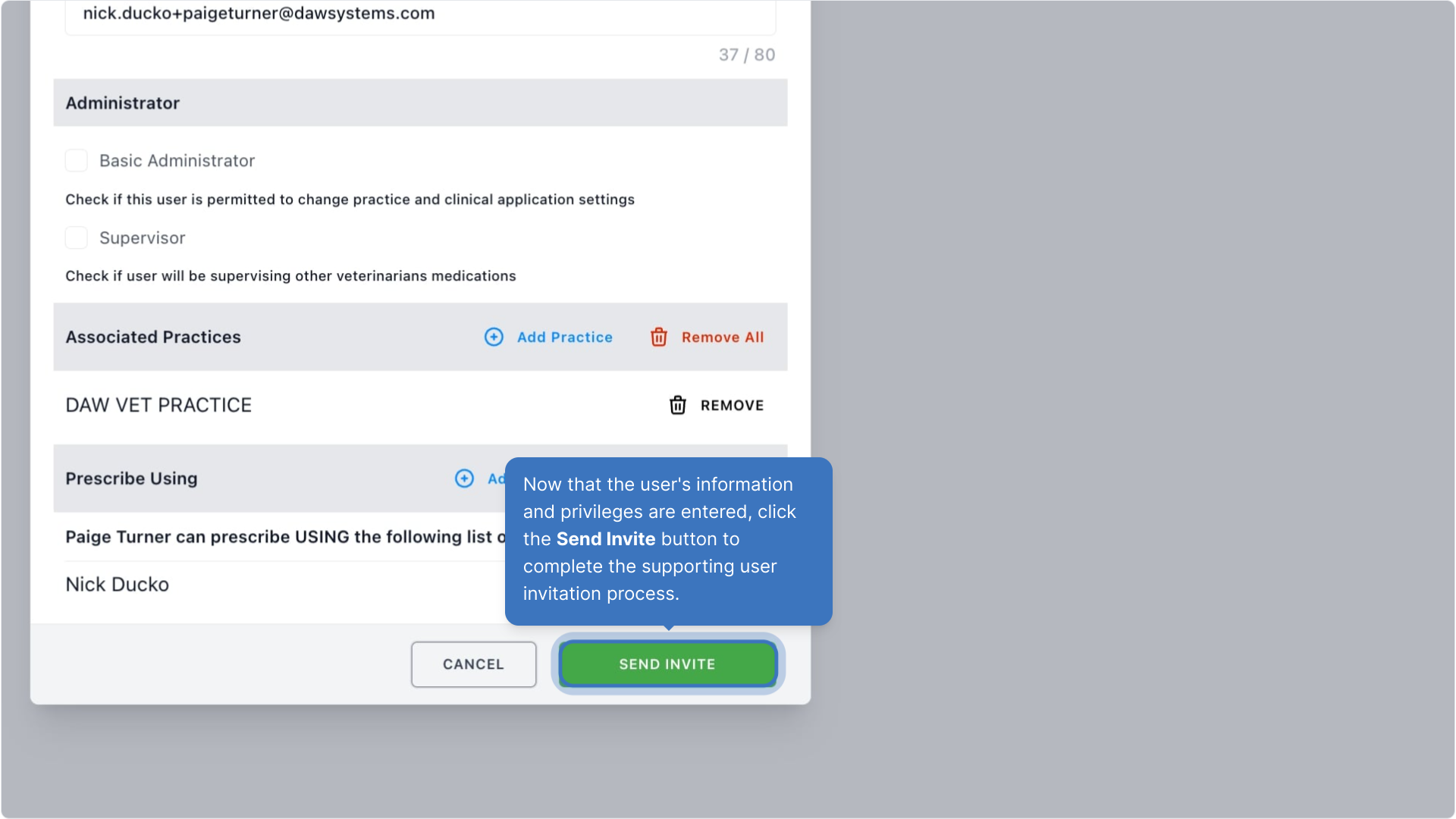
Administrator: The user's administrative privileges can be preset from the invitation in the Administrator section.
- Basic Administrator (Optional): Only check this box if the user should be allowed to make changes to the practice settings.
- Full Administrator (Optional): Only check this box for administrators who need access to add, invite, or edit other users within the organization.
- Supervisor: Check this box if the user will be supervising other veterinarians' prescriptions.
Associated Practices: You can add additional Practices that the user can access (if needed).
Permissions: At the bottom of the invitation, supporting users can be assigned to prescribe on behalf of veterinarians. Click Add Veterinarian or Add User.
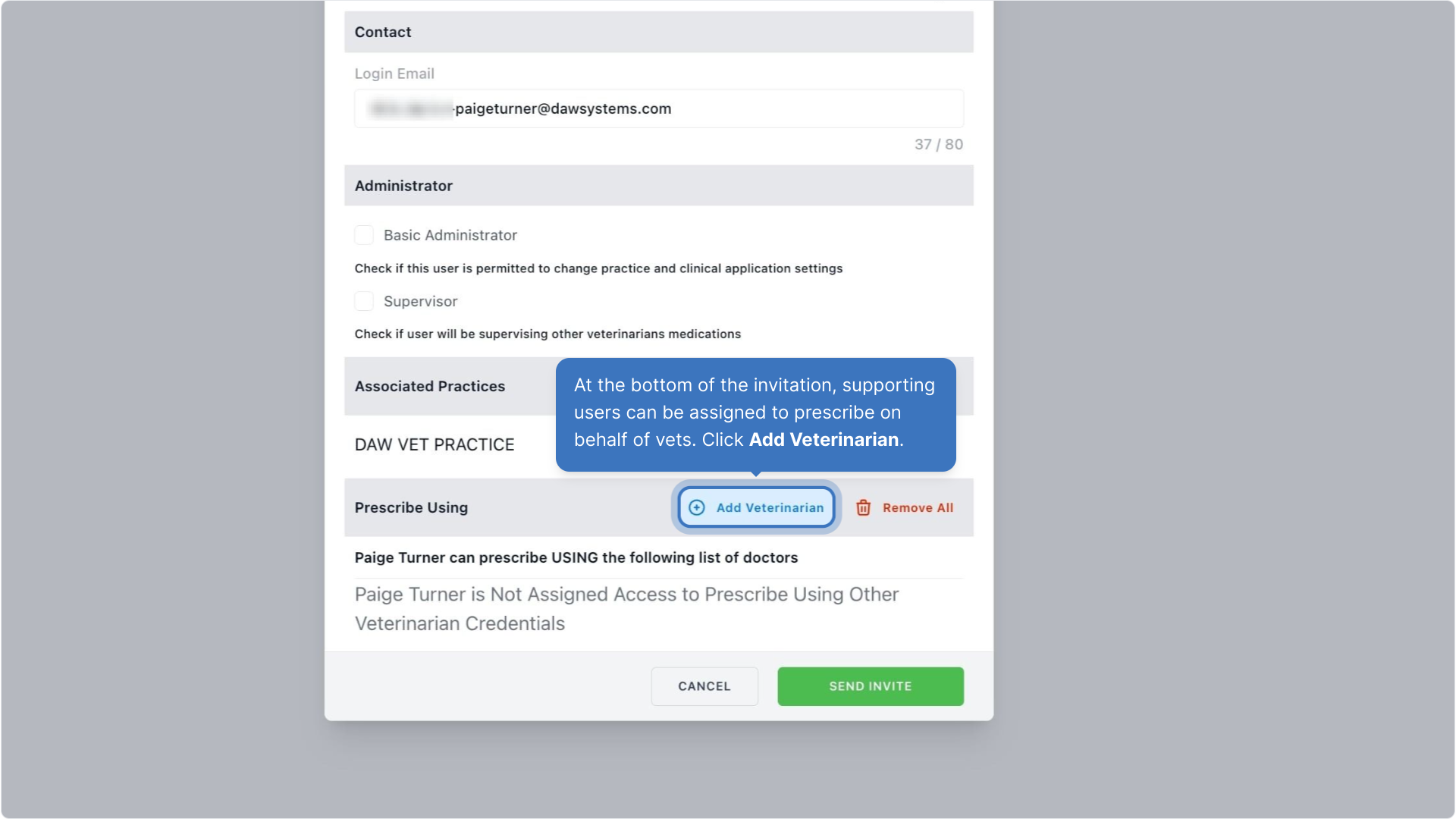
Once all the information has been filled out, click the Send Invite button to complete the veterinarian invitation process. Then, an email will be sent to the person with their invitation.
Walk-through Demo
Explore the steps by clicking through the demo below!
Was this article helpful?
That’s Great!
Thank you for your feedback
Sorry! We couldn't be helpful
Thank you for your feedback
Feedback sent
We appreciate your effort and will try to fix the article